
Zentrik + Aha!
When ideas and demand already live in Aha!, pull them into Zentrik Discovery so you prioritize and synthesize next to calls, tickets, and docs—without maintaining two parallel backlogs by hand.
Admins save one workspace credential in Settings → Integrations.
Zentrik connects with your Aha! subdomain and an API key saved once per workspace. Imports are read-biased: you bring selected ideas into Discovery for analysis and linking; Aha! stays your upstream idea system unless you choose otherwise.
One Aha! integration per Zentrik workspace keeps credentials and imports centralized.
Connect Aha!
Admins add Aha! from Settings → Integrations. You need the subdomain that appears before .aha.io in your Aha! URL, plus an API key from Aha!’s developer settings.
Subdomain & API key
- In Aha!, create or locate an API key with access to the ideas you want to import.
- Note your subdomain (for example,
acmeforacme.aha.io). - In Zentrik → Settings → Integrations → Aha!, paste subdomain and API key.
- Save and run any connection check in the UI.
Secrets are stored with normal workspace isolation; keys are never shown again in the browser after save.
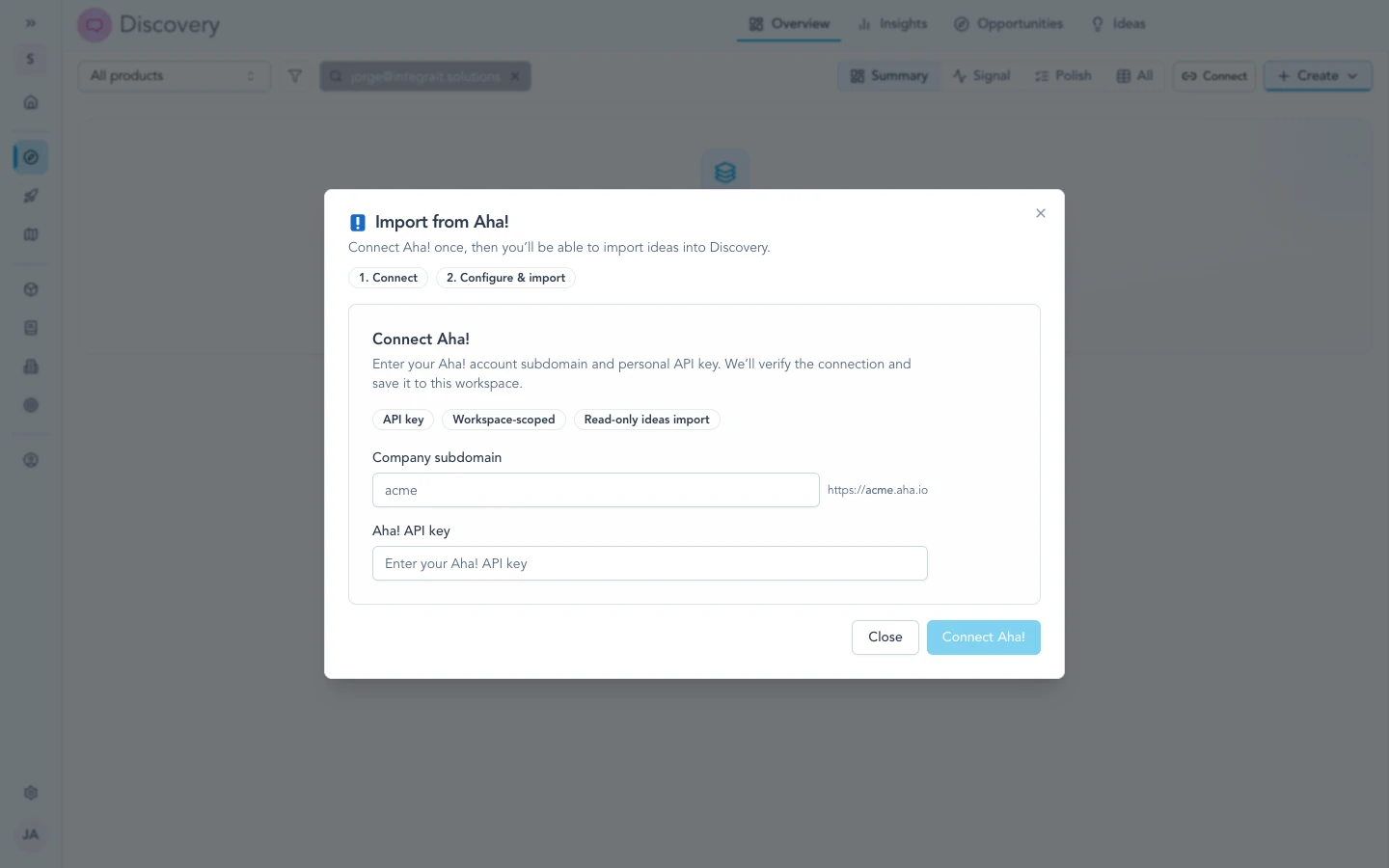
After the workspace stores your Aha! subdomain and API key, authorize the import flow to pull ideas into Discovery.
How to use it
Use Discovery import entry points that list Aha!. You pick ideas or structured demand; Zentrik processes them alongside other signals.
Import ideas
- Open Discovery (or the import surface your workspace uses).
- Choose Aha! as the source.
- Per-user sign-in is not required—the workspace integration supplies access.
- Use the picker to select ideas and confirm the preview.
Imported records keep references to Aha! identifiers where the product shows them, so PMs can still treat Aha! as canonical for the original idea.
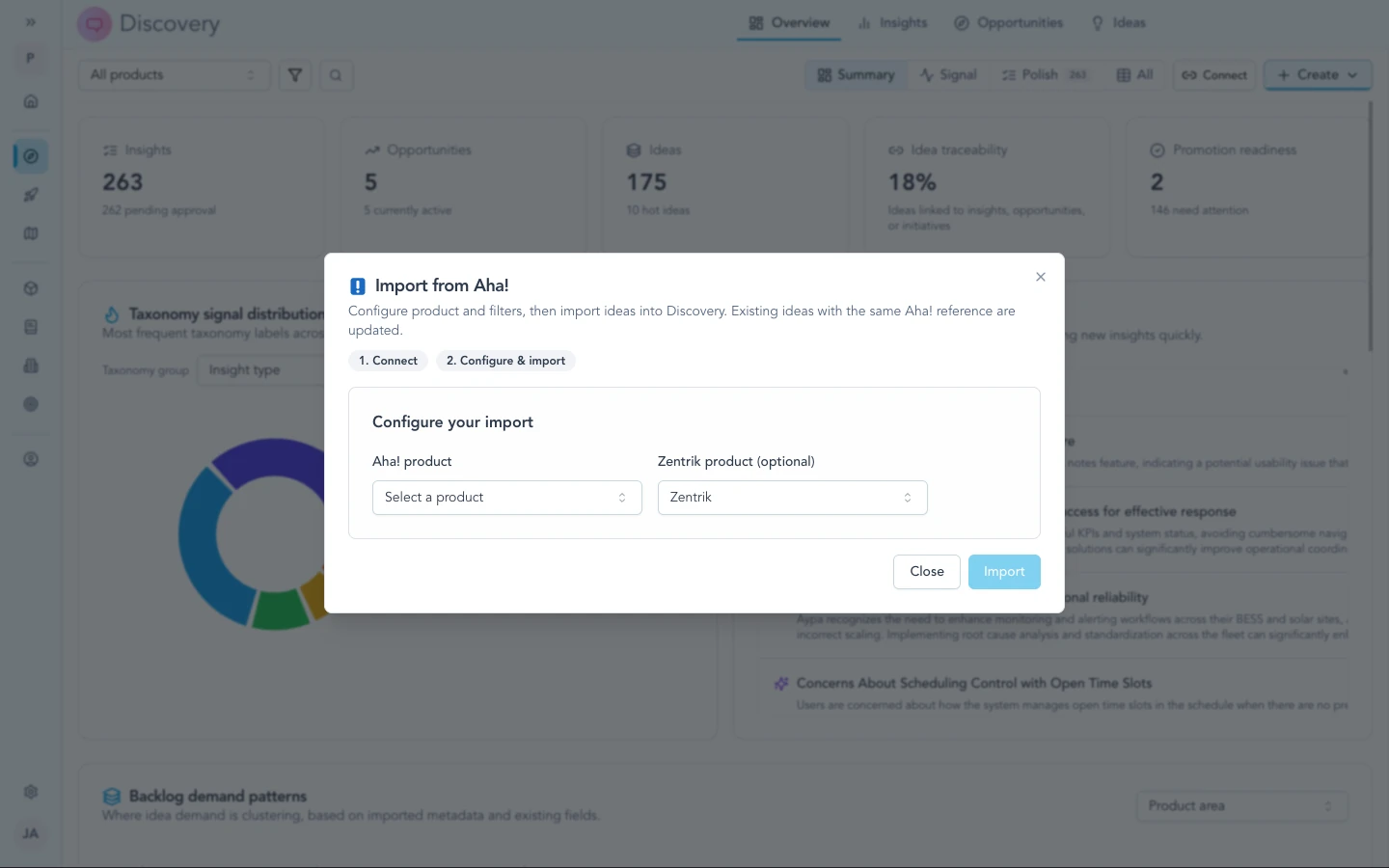
Pick the ideas or scope you need before they land as structured signal in Discovery.
For workspace admins
- Treat the API key like a password—rotate in Aha! if someone leaves or a key may have leaked, then update Zentrik so imports keep working.
- Remove the integration in Zentrik when you no longer want automated access to Aha!.
- Wrong tenant? The subdomain ties Zentrik to one Aha! account—disconnect and add again with the subdomain and key you meant.
Troubleshooting
Check credentials and permissions on both sides first. If you have verified everything and it still fails, contact us with your workspace name and what you tried.
Credentials rejected
In Aha!, confirm the API key is valid and can read the ideas you need. Regenerate if unsure, paste into Settings → Integrations → Aha! in Zentrik, and save.
Wrong Aha! workspace
The subdomain ties Zentrik to one Aha! account. Disconnect and add the integration again with the subdomain and key for the account you meant.
Still stuck
Contact us and we will help.