Evidence → insights
Bring customer evidence into Discovery
Most teams start by importing a transcript or note directly in Discovery. After that, the next step depends on where the evidence lives: connect a supported source, ask us to add the source you need, or follow the technical import guides when your team wants to move data with the API.
However it arrives, the flow is the same: customer or demand text becomes a signal, then proposed insights you can accept, edit, merge, or link to the learnings your team already trusts.
Every import path ends in the same shape: a signal holds the source text and processing status, then Zentrik proposes insights for you to curate. Most teams start with one manual import, confirm the output looks right in Discovery, and then decide whether to keep importing manually, connect a source, or automate with the API.
Use this page in this order:
-
Start with manual import in Discovery when you want to see the workflow first.
-
Use connected sources when Zentrik already supports the tool where your evidence lives.
-
Ask us for a custom integration when you want a native connection for a source we do not list yet.
-
Use the technical import guides when you or your engineer want to pull data from another source directly.
-
From customer evidence to initiatives: opportunities, ideas, initiatives.
-
Insights → opportunities: shared problem and bet space.
-
Taxonomy & themes: dimensions, AI labels, semantic themes on the map.
-
Workspace context: product, OKRs, personas, docs.
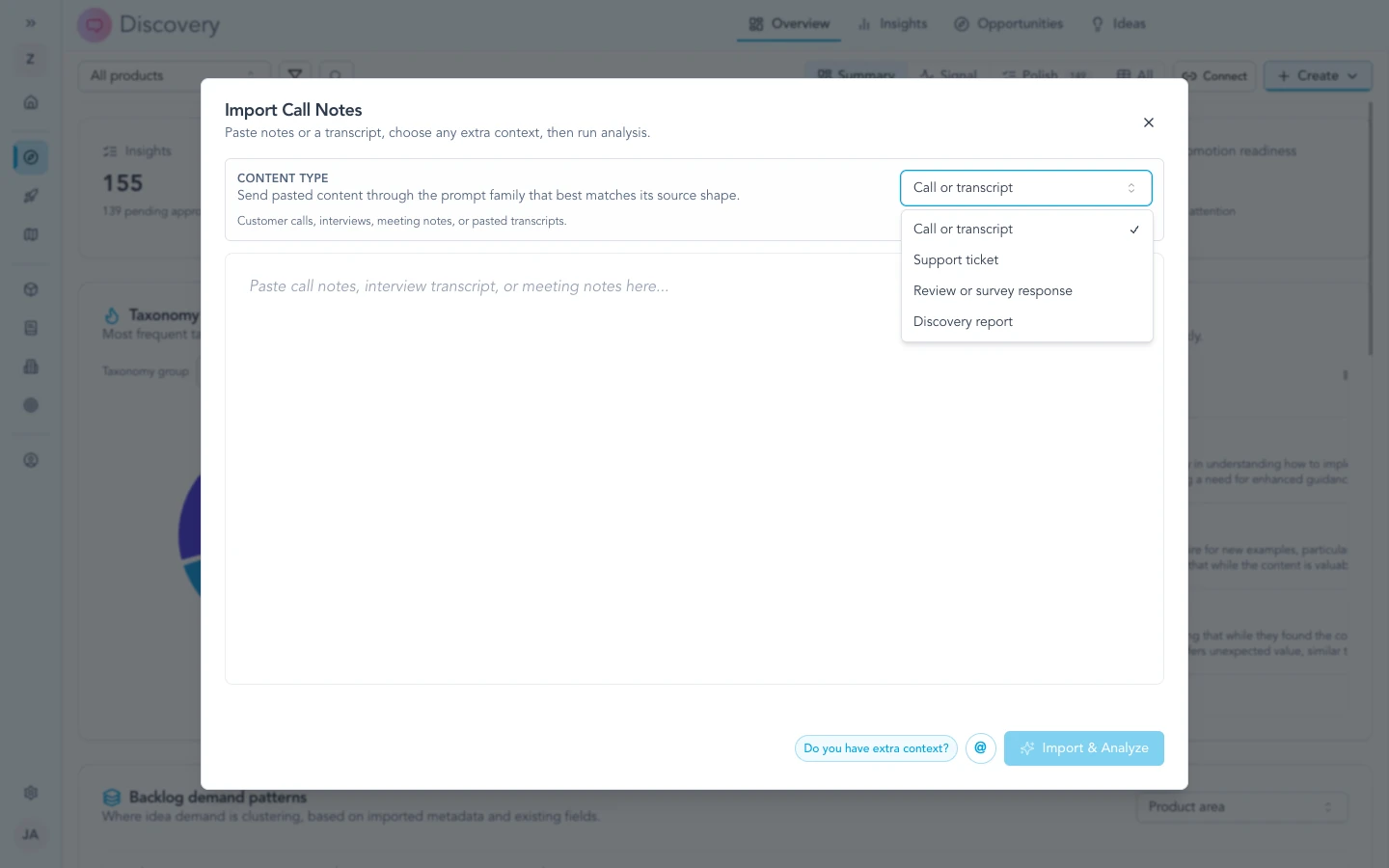
Paste and files are one way in; connected tools use the same signal → insight pipeline after you pick records.
Start with the easiest path
The fastest way to understand Discovery is to import one real piece of evidence manually.
- Open Discovery in your workspace.
- Use the text import path for a transcript, call notes, a support ticket, or another bounded body of text.
- Paste the content, confirm the preview, and import it.
- Open the resulting signal and review the proposed insights.
That first run gives you a concrete baseline for how Zentrik handles your evidence before you spend time on integration work.
Connect supported sources
When your evidence already lives in a supported tool, connect that source instead of moving data yourself. Open Settings → Integrations or start from the documentation hub to connect providers such as Zoom, Gong, Zendesk, or Jira.
After the connection is set up, import the records you want from Discovery. The same signal-processing pipeline runs after import, but your team does not need to maintain a custom script.
Bring a source we do not list yet
If your source is not listed in the hub, ask us about it first if you want a native integration. When a source already exposes transcripts, tickets, or exports through an API, we can usually help you get to a workable path quickly.
If your team wants to move on its own, use the technical import guides linked below. That path is a good fit when you already have access to the source API and want to load records into Discovery without waiting for a native connector.
Use the technical import guides when you need them
You do not need the API to understand or use Discovery. Keep this guide product-focused and use the technical pages only when your team is ready to automate another source.
Use these links in order:
- Signals API quickstart for a first successful single-record import
- Signals import template for the full script with retries, polling, dry run support, and source mapping
- Signals API reference for the endpoint contract
What happens when you import
After you confirm your selection (or after a connector delivers the text), Zentrik normalizes the content, proposes learnings, dedupes obvious repeats in that batch, and links proposals back to the signal so wording stays traceable.
Rich customer conversations and tickets often surface several candidates in one pass; shorter or internal notes may surface fewer—the signal remains the audit trail in both cases. Very long bodies may process asynchronously; watch status on the signal until work completes. If a run stalls, retry from the signal or split an oversized input.
Gong, Zendesk, Zoom, and the rest hand text into this pipeline after you choose what to import; paste and file paths feed the same steps directly.
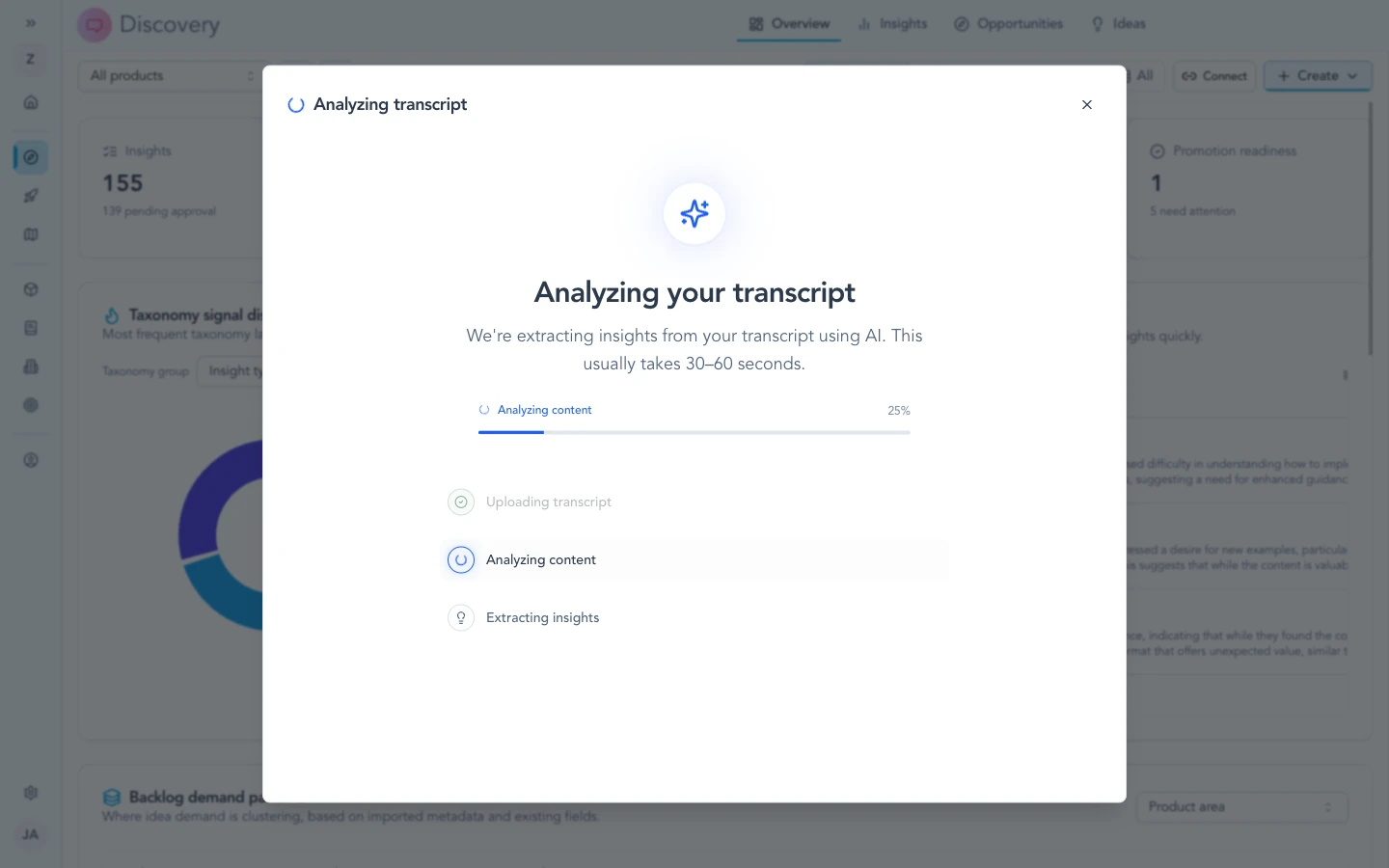
Processing often runs asynchronously. Check status on the signal until candidates and links are ready.
How the picture grows
After the first pass, most teams merge, edit, split, or link to existing insights so new quotes attach to learnings the org already approved—one shared map that stays easier to read as volume grows.
As more signals arrive, clusters tighten or shift. Expect the map to move when imports continue.
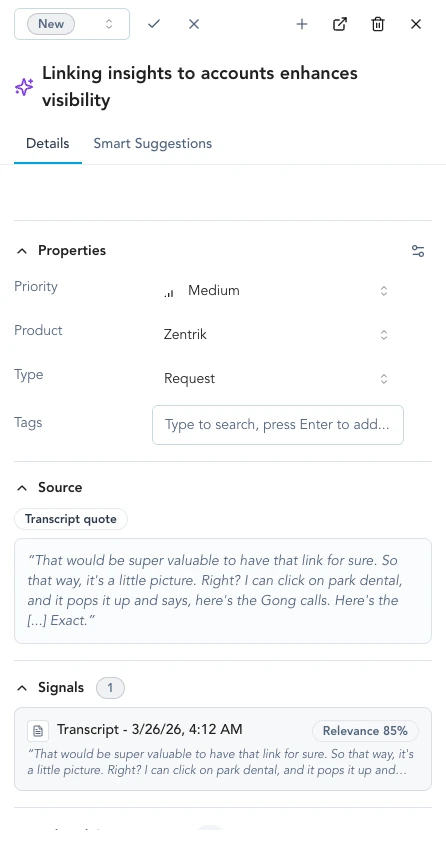
Insights stay linked to signals so new quotes attach to the same learning as you merge and edit.
Themes & trends
Semantic themes cluster what customers keep saying; taxonomy is the dimensions and values your team defines for stable rollups; trend views and the map show concentration, gaps, and change as new evidence lands.
For how those pieces fit together, read Taxonomy & themes: Taxonomy and themes (when to use each lens), then Maps and rollups for charts and working-session tips.
If your workspace requires review before items appear in rollups, complete that step so maps match your approval rules.
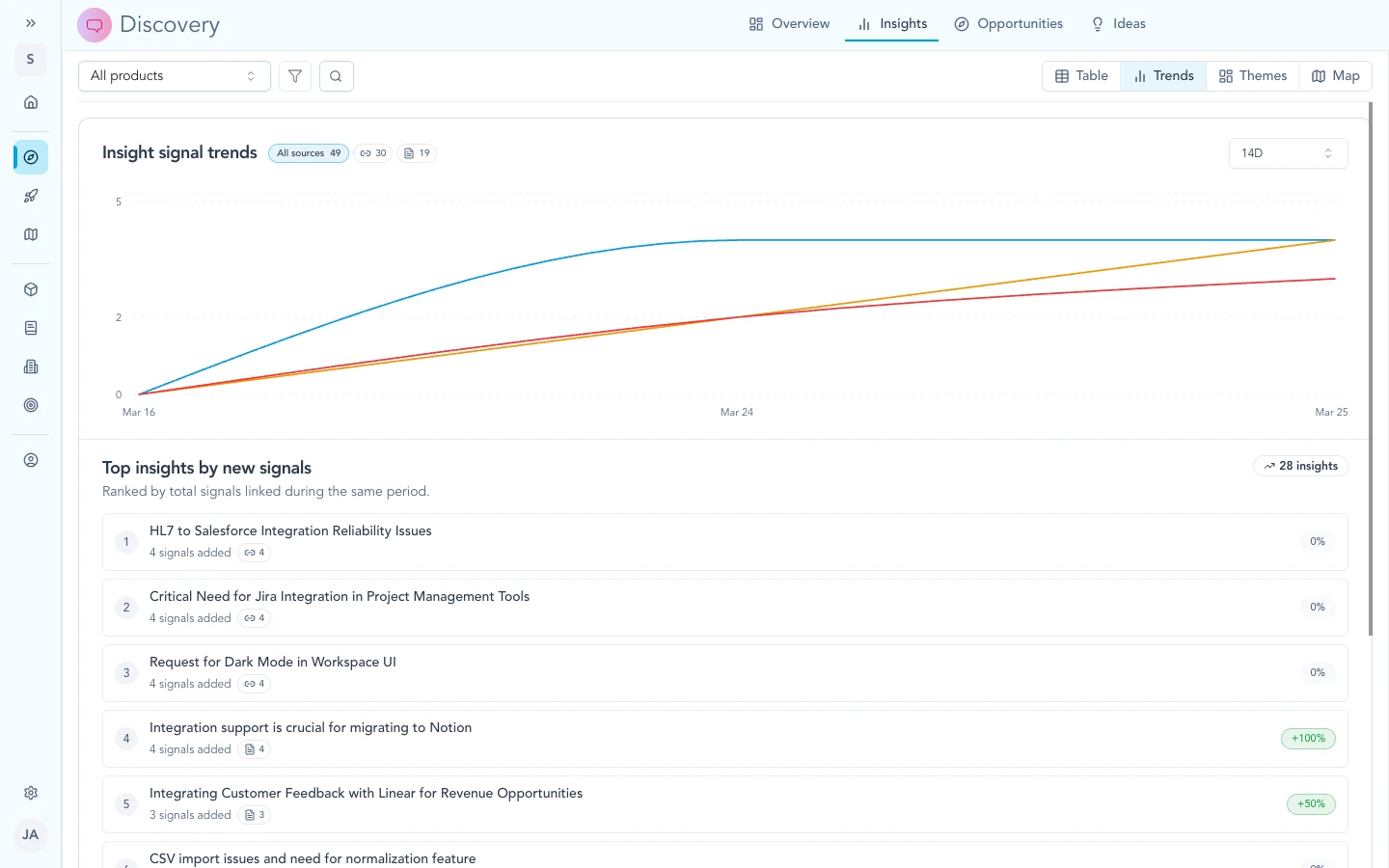
Themes and trends reflect the full insight graph as new signal arrives and labels change.
What to read next
- Signals API quickstart: first successful API call.
- Signals import template: full import script for real sources.
- Signals API reference: request and response shapes for programmatic imports.
- Insights → opportunities: group learnings into problem and bet space.
- Taxonomy & themes: labels and map lenses.
- From customer evidence to initiatives: full flow to initiatives.
- Workspace context: workspace knowledge.
- Documentation hub: provider setup.
For workspace admins
- Paste and uploads use the text your users provide; vendor credentials apply when they use a connector, configured under Settings → Integrations with normal workspace access rules.
- Users typically choose which records to import from a connected system unless a workflow automates selection.
- Processing is server-side; status and errors surface on the signal so people can retry or escalate.
Troubleshooting
These items are about workflow and expectations in the product, not a broken OAuth client. If something contradicts what you see in your workspace, note your workspace name and the screen, then contact us.
Processing seems stuck
Open the signal and check status. Large transcripts take time. If taxonomy or intake review is required, complete it so items can appear in maps. Contact us if status never completes.
Should we use manual import, a connector, or the API?
Start with manual import when you are validating the workflow with a few records. Use a connector when Zentrik already supports the source. Use the technical import guides when you want to import another source yourself or hand a source-specific script to your engineer or coding agent.
Few proposed learnings after an import
Open the signal and confirm the body that arrived matches what you expected (full transcript or ticket text, not just metadata). Richer customer-facing content usually gives Zentrik more to work with; split a very large upload if processing struggled. Check filters and review queues if your workspace hides drafts from some views. For steady volume, keep connected sources configured so new evidence follows the same path automatically.