
Zentrik + Confluence
Ground planning and Discovery in the Confluence spaces your team already trusts. Search pages you can already open, import the ones you need into workspace context, and keep product work tied to the same specs and runbooks—read-only from Zentrik’s side.
Connect once under Settings → Integrations (OAuth).
After you connect with Atlassian sign-in, Zentrik can import Confluence pages into workspace context for discovery, initiatives, and traceability. You choose each page; nothing is bulk-synced silently.
Most workspaces use one Confluence connection so imports stay predictable and credentials are not duplicated across users for the same site.
Access & permissions
What Zentrik requests when you connect (useful for security reviews). You can review or revoke access from the provider's account or admin console anytime.
- Stay connected : Keeps the integration active until you disconnect or revoke it in Atlassian.
- Search and browse : Find spaces and pages your Atlassian user can already open in Confluence.
- Read imported pages : Pull in content you explicitly choose—Zentrik does not write back to Confluence through this integration.
Connect Confluence
Start from Settings → Integrations → Confluence and complete Atlassian’s consent. You return to Zentrik when authorization succeeds.
Authorize Confluence
- Settings → Integrations → Confluence → start connect.
- Sign in with Atlassian and pick the Confluence site if prompted.
- Approve the access needed for imports.
If you use both Jira and Confluence with Zentrik, each product may ask for its own authorization step depending on your setup.
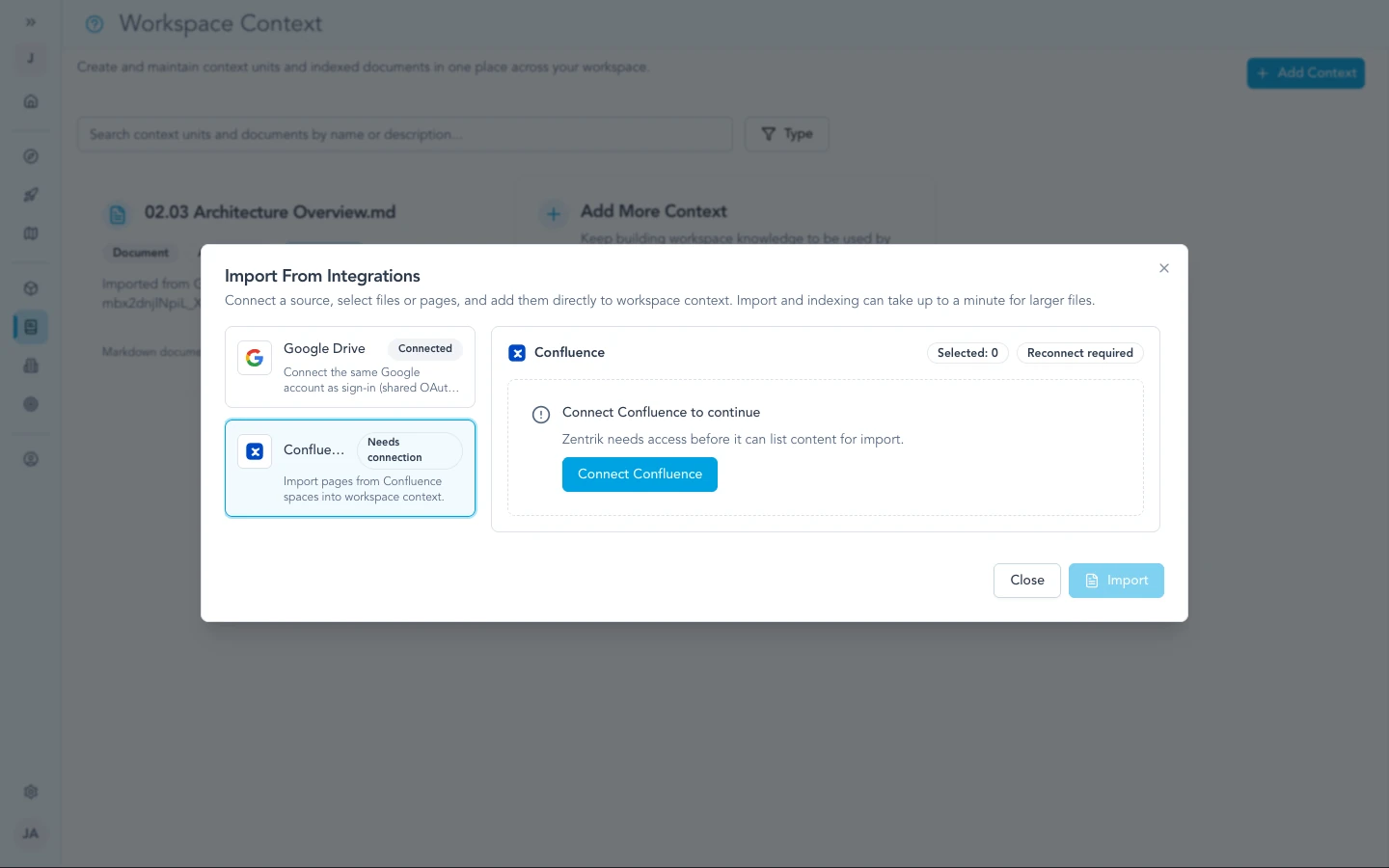
You authorize Confluence from the same style of flow used for other context imports—sign in with Atlassian and approve access.
Wrong site or blocked app
- If Atlassian blocks new apps, an admin may need to approve Zentrik before sign-in succeeds.
- If you picked the wrong site, disconnect in Zentrik and connect again, choosing the correct site when Atlassian prompts you.
How to use it
Use your workspace’s context import entry point, choose Confluence, search, then confirm the preview. Imported content becomes searchable context inside Zentrik.
Import pages
- Open the workspace context or import UI that lists Confluence.
- Search for the page or space you need.
- Confirm the preview and import.
Zentrik respects Confluence permissions through the account you authorized—if you cannot see a page in Confluence, you cannot import it.
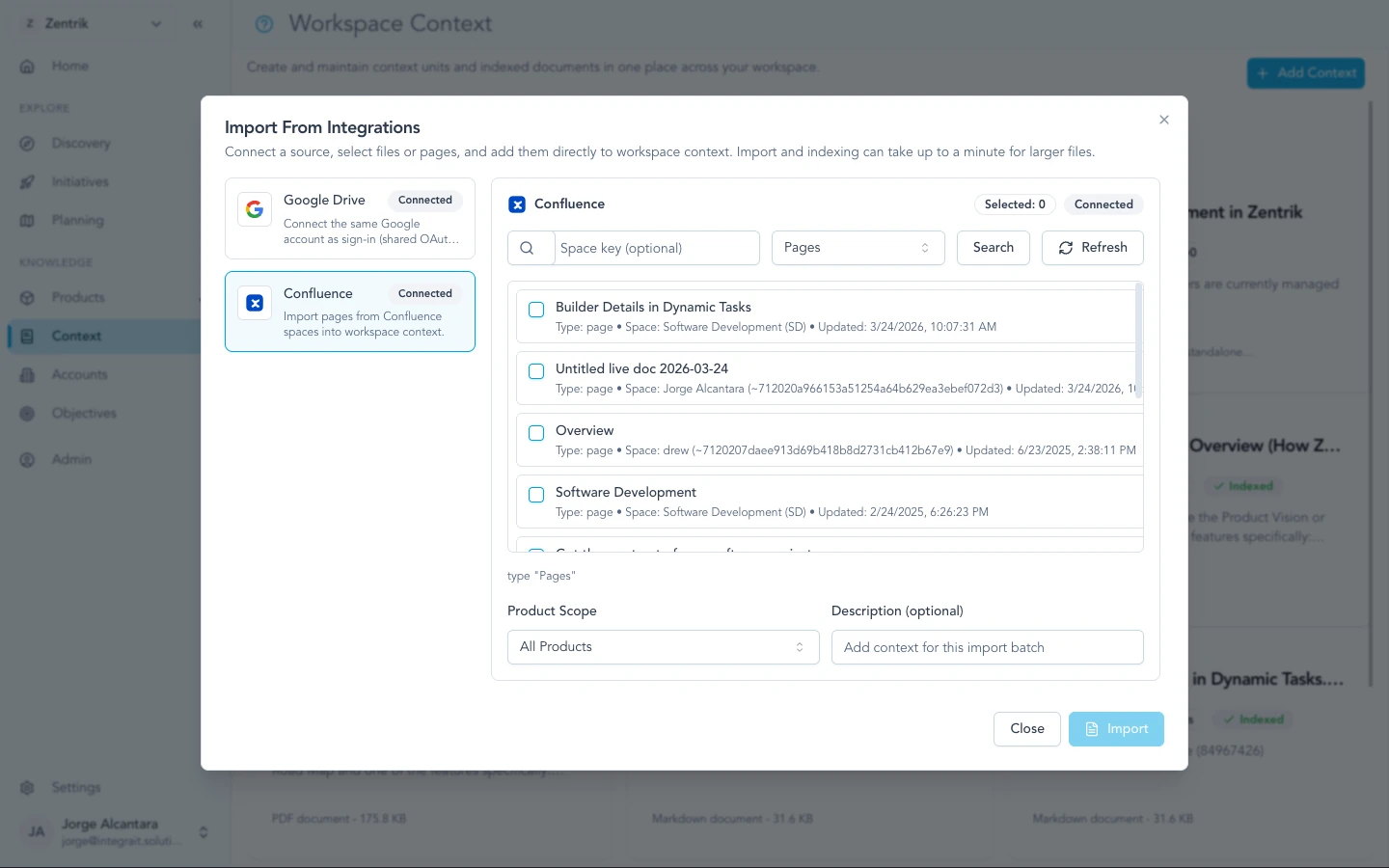
Search pages you already have access to in Confluence; only content visible to your user can be imported.
For workspace admins
- Scopes are read-oriented: Zentrik retrieves pages and metadata for imports you explicitly run. We do not publish edits back to Confluence through this integration.
- Revoke from Atlassian account settings or by disconnecting in Settings → Integrations.
Troubleshooting
Most connection problems clear up after a fresh authorization or an admin allows the app. If you have tried that and still cannot connect, contact us and we will help.
Sign-in or authorization errors
Settings → Integrations → Confluence → disconnect, then connect again and complete Atlassian consent. Ask your Atlassian admin to allow Zentrik if your org blocks new apps. Contact us if it still fails.
Page does not appear in search
Open the same page while signed into Confluence as the user you connected. If you cannot see it there, adjust space or page permissions in Confluence first.