
Zentrik + Cursor
Ship from the same brief your PMs approved. Cursor picks up structured tasks, stories, and agent plans from Zentrik so engineers and automation are not re-pasting context from Slack threads or decks.
Admins save one workspace credential in Settings → Integrations.
Once a workspace admin saves a Cursor API key, everyone who can reach the relevant initiatives and projects can use Cursor-backed actions without managing their own secret. Exports and agent runs reuse that identity so behavior stays consistent across the team.
Open an initiative’s Agents tab to see the workflow graph—plan nodes, execution agents, and dependencies. Configure model, repository, and branches from a plan node, and review governance next to the execution plan before automation runs.
Configure Cursor
One Cursor integration per Zentrik workspace. An owner or admin should add or rotate the key so all permitted teammates share the same automation identity.
Save the API key
- Create a Cursor API key from Cursor’s account or enterprise console (wording follows their current UI).
- In Zentrik: Settings → Integrations → Cursor.
- Paste the key, save, and run any connection check offered.
If validation fails, confirm the key is active in Cursor or generate a new one.
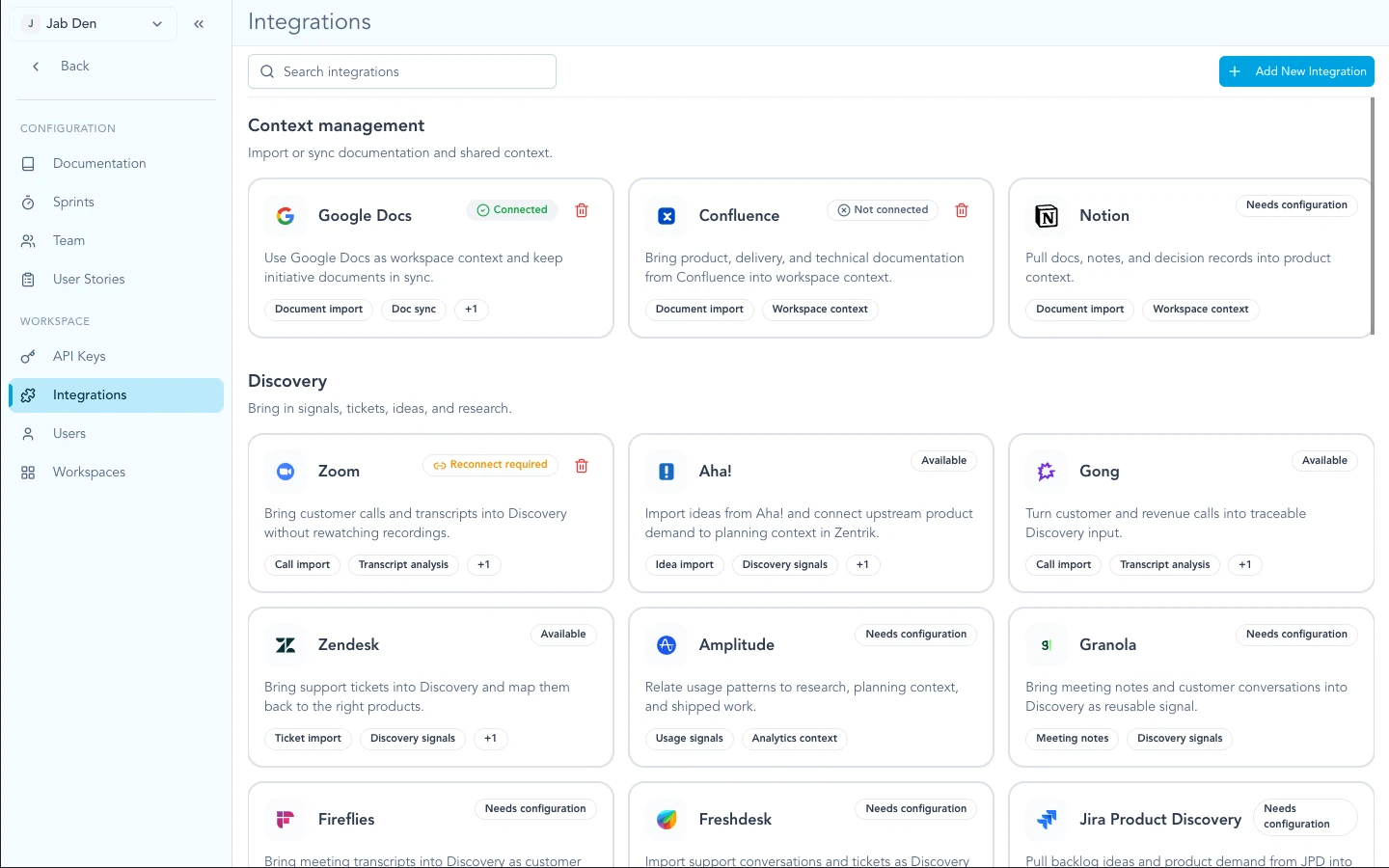
Open Cursor under Settings → Integrations to save or rotate the shared workspace API key.
Rotate or remove
- Rotate: paste a new key and save; Zentrik replaces the previous secret server-side.
- Remove: disconnect in Zentrik and revoke unused keys in Cursor so they cannot be reused elsewhere.
Where it shows up
Cursor surfaces anywhere Zentrik sends structured product context into coding assistants: task and story export from initiatives and projects, and the initiative Agents experience where plans and governance are defined before runs.
Tasks and stories
Export or sync tasks and stories into Cursor-ready payloads so engineering starts from the same acceptance criteria, links, and background PMs signed off on in Zentrik.
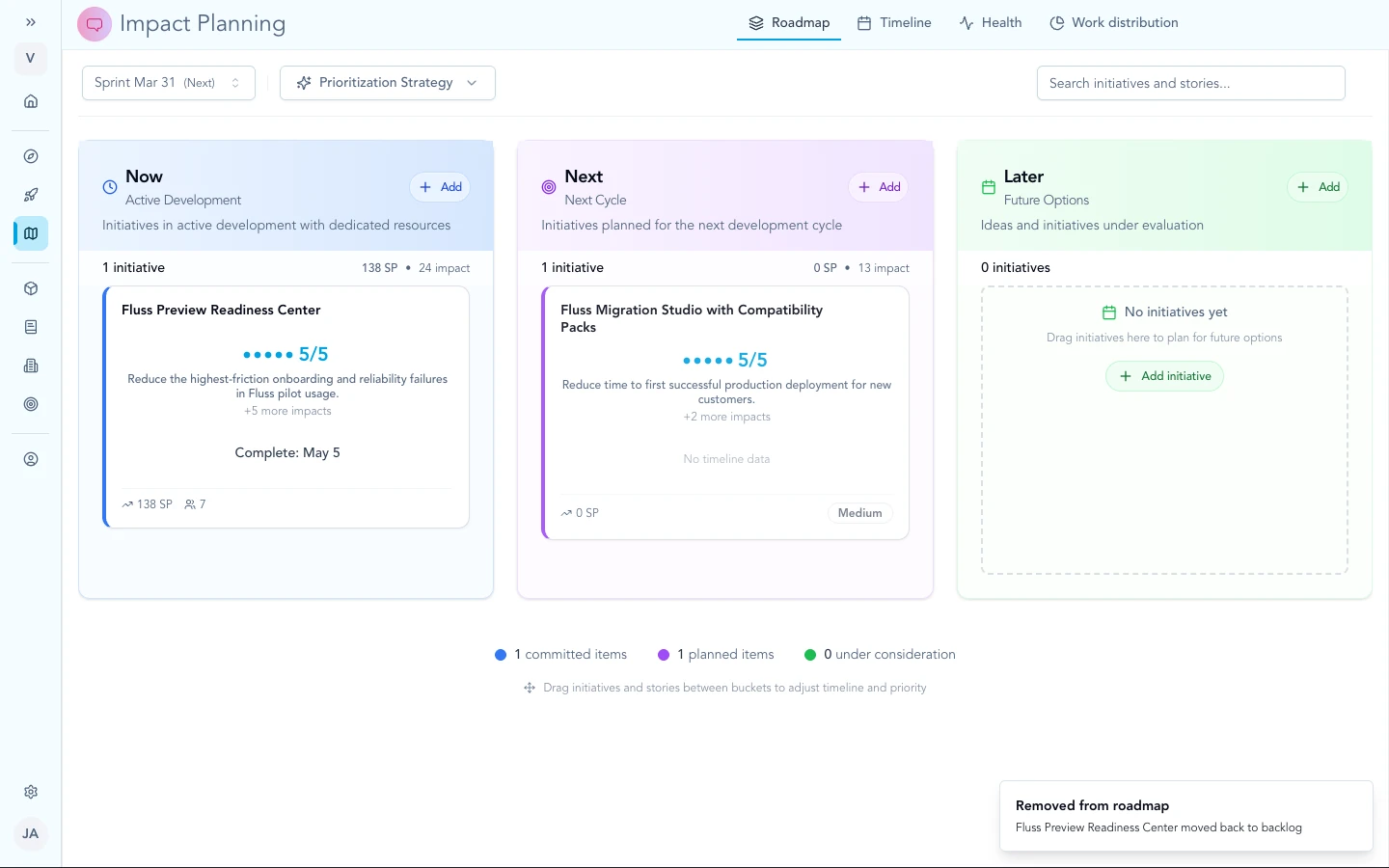
Cursor-backed export and sync typically attach to initiative and planning surfaces—structured tasks and stories carry the same context you see on the roadmap.
Agents & automation
The Agents graph shows how work breaks into execution agents under each Agent plan node. Click a plan to edit model, repo, branches, and plan text; open the governance / execution plan view when you need policy checks beside the run definition. When agents execute, they use the shared Cursor key from Settings so runs stay tied to the initiative that started them.
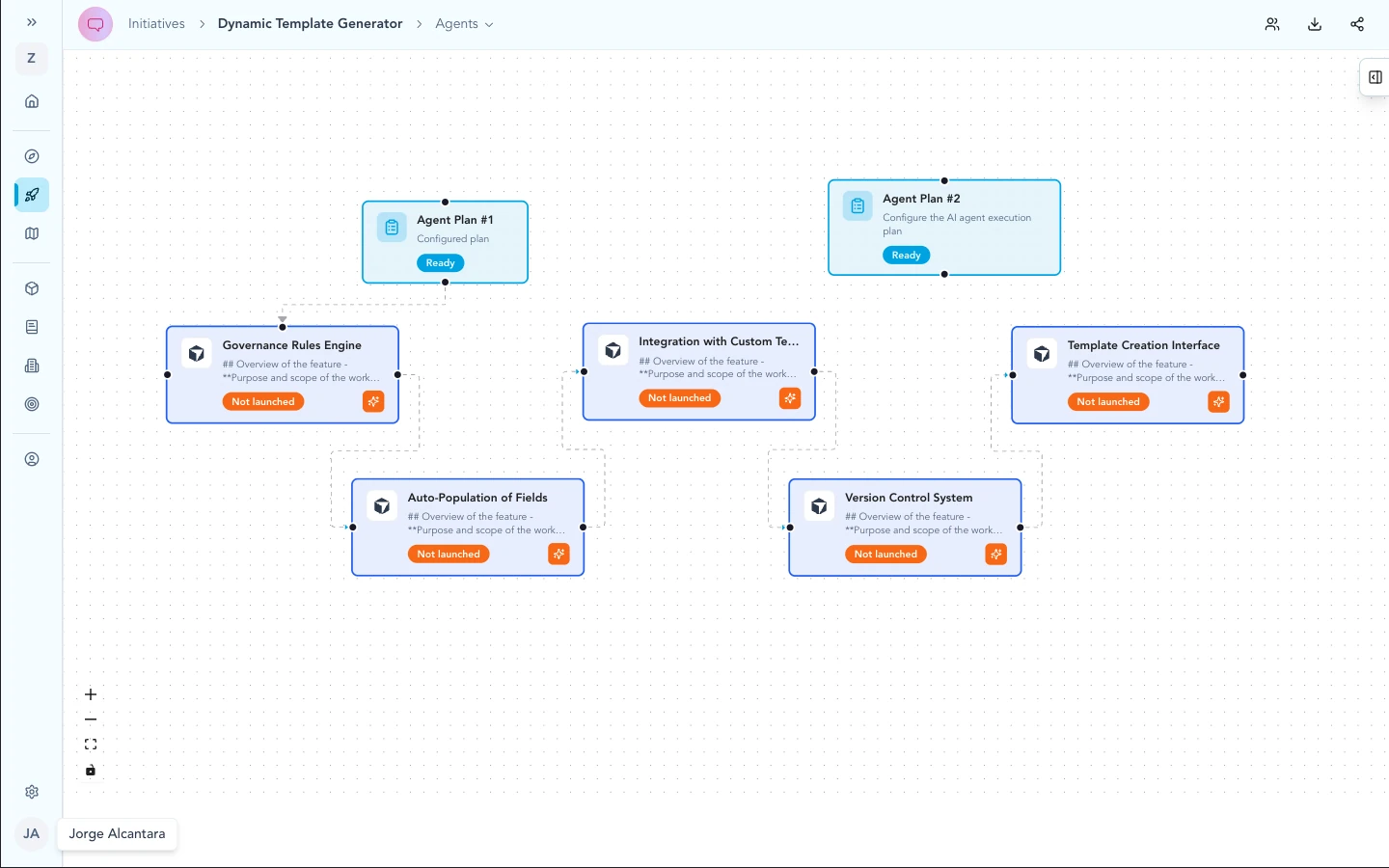
On the initiative Agents surface, the graph shows the Agent plan and downstream execution agents Zentrik derived from your plan—this is where long-running automation is orchestrated before tools like Cursor act on the work.
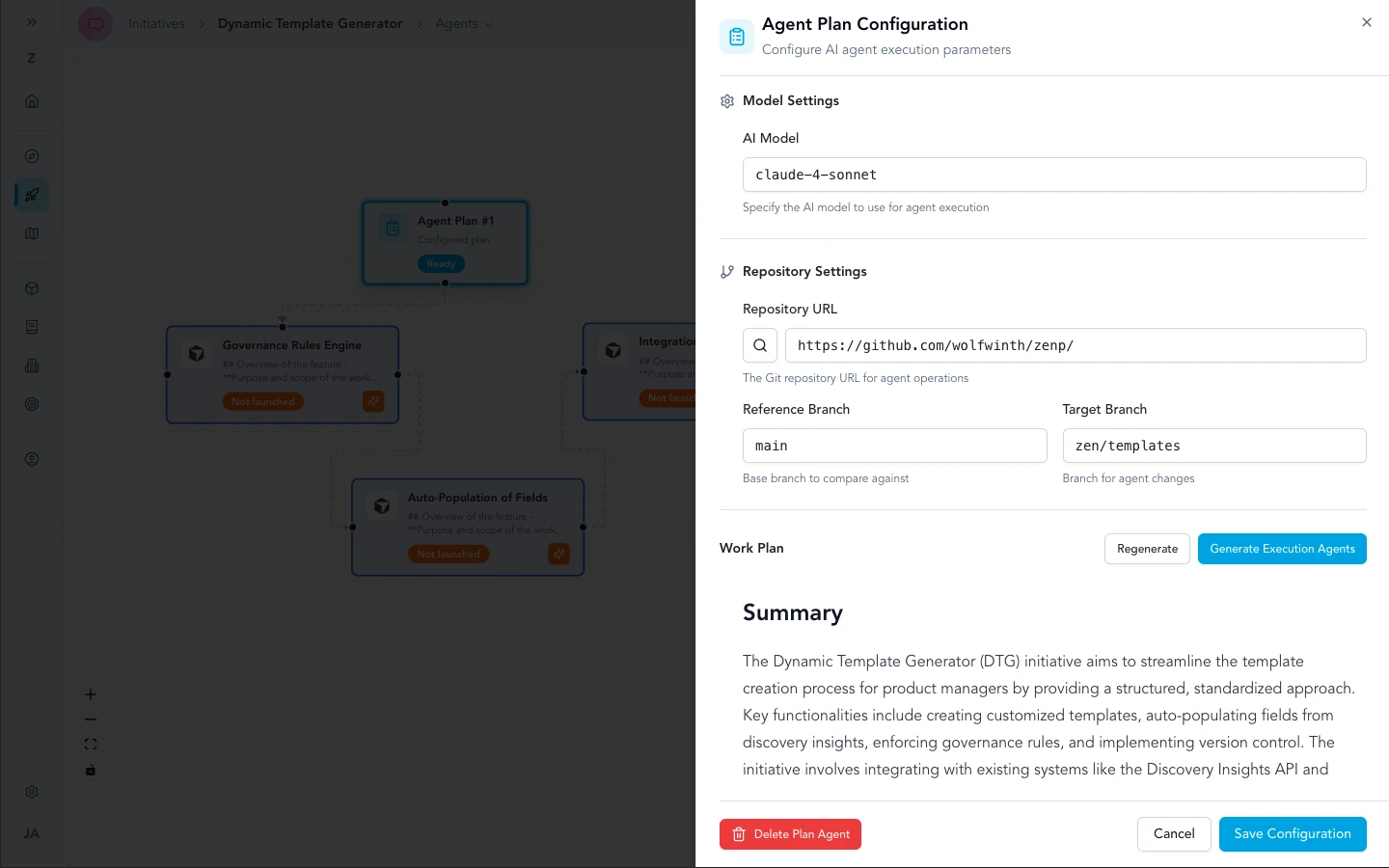
Opening a plan node launches configuration: pick the model, repo, branches, and execution plan text Cursor-backed agents should follow.
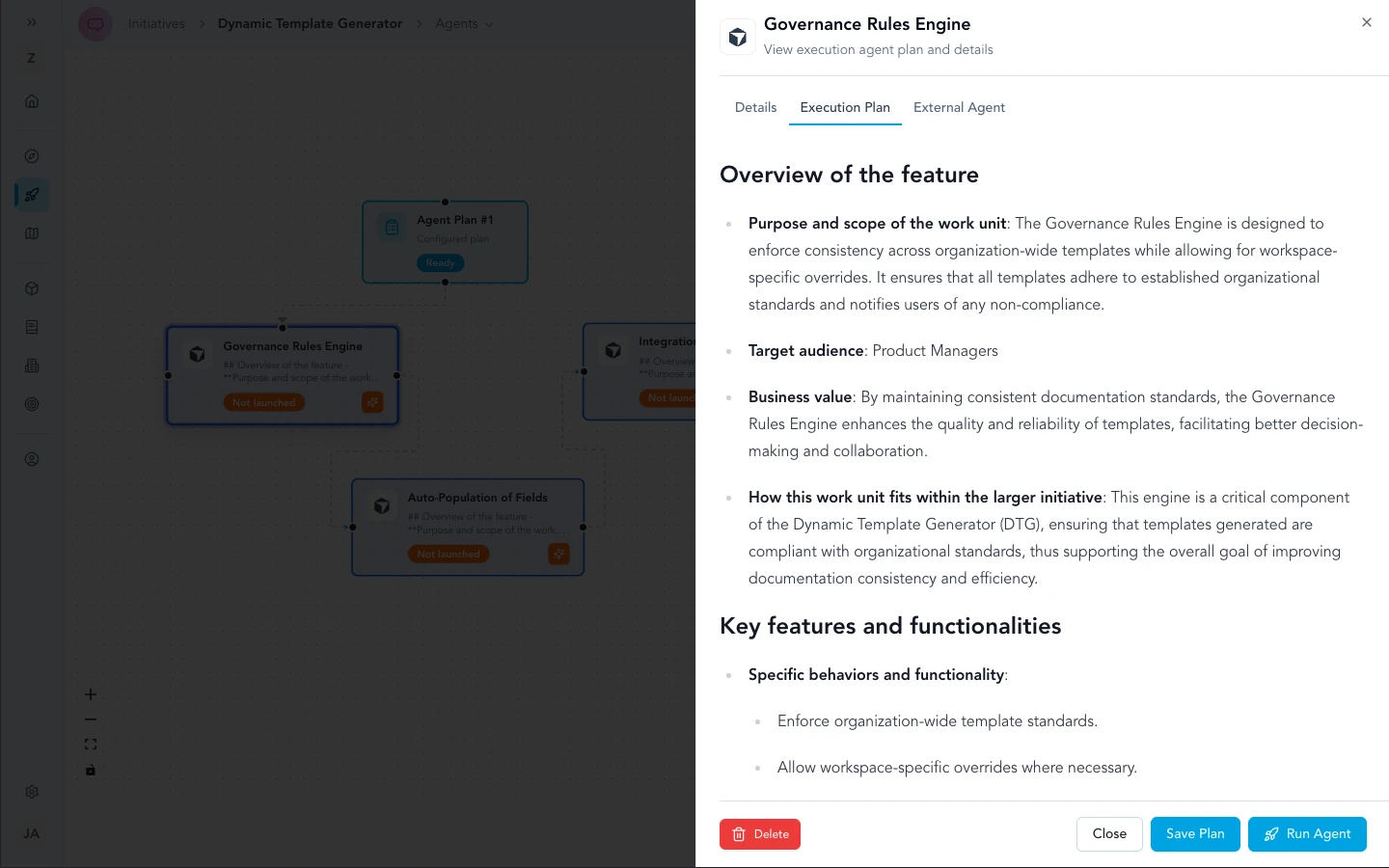
Governance rules and the execution plan can be reviewed together in a focused modal so policy checks stay visible next to what agents are allowed to run.
For workspace admins
- The key is shared across users who can trigger Cursor flows; Zentrik never shows the secret again after save.
- Permissions still apply: teammates only see actions on initiatives and projects they can already open.
- Treat the key like any other automation credential: rotate on schedule, scope in Cursor to least privilege, and remove it when you offboard a integration.
Troubleshooting
Check credentials and permissions on both sides first. If you have verified everything and it still fails, contact us with your workspace name and what you tried.
Connection check fails
Generate a new key in Cursor, paste it into Settings → Integrations → Cursor, and save. If your org restricts Cursor, work with IT or your Cursor admin, then contact us if Zentrik still cannot validate.
Teammate cannot use Cursor from Zentrik
Confirm they are in the same workspace and can open the initiative or project where the action appears. The key is shared, but Zentrik permissions are not bypassed.