Zentrik + Google Drive
Keep writing in Google Docs and deciding in Zentrik. Import specs and notes into shared workspace context, link initiative documents to upstream files, and refresh when both sides change—without copy-pasting between tabs.
Connect once under Settings → Integrations (OAuth).
Use Zentrik for prioritization, discovery, and initiatives, and Google for drafting and comments your team already knows. Pull selected Docs into workspace context so everyone works from the same source, or link an initiative document to a Doc when collaboration should stay in Drive.
Exact buttons depend on where you are in the product; the pattern is always: pick a file, confirm preview, then use that content in Zentrik.
Access & permissions
What Zentrik requests when you connect (useful for security reviews). You can review or revoke access from the provider's account or admin console anytime.
- Google Drive : List and open files you choose so you can import Docs into Zentrik.
- Google Docs : Read Doc content for imports; update linked Docs when your workflow keeps an initiative document in sync.
- Google account : Shows which Google profile is connected for this workspace.
Connect Google Drive
Connect from Settings → Integrations → Google Drive and approve Google’s consent screen. You only do this once for the workspace integration your team shares.
Before you start
- A Google account that can open the Docs you need.
- If your company blocks third-party apps, a Google Workspace admin may need to allow Zentrik before OAuth succeeds.
Authorize in Zentrik
- Settings → Integrations → Google Drive.
- Start connect and pick the Google account that owns or has access to the Docs.
- Approve the requested permissions.
If sign-in is blocked, work with your Google admin, then try again.
How to use it
Capabilities show up in workspace context imports and initiative document flows. Upstream collaboration can stay in Google while Zentrik stays the place for product decisions and traceability.
Workspace context
Import selected Google Docs into shared workspace context so discovery, planning, and traceability reference the same PRDs, research notes, or decision logs you already maintain in Drive.
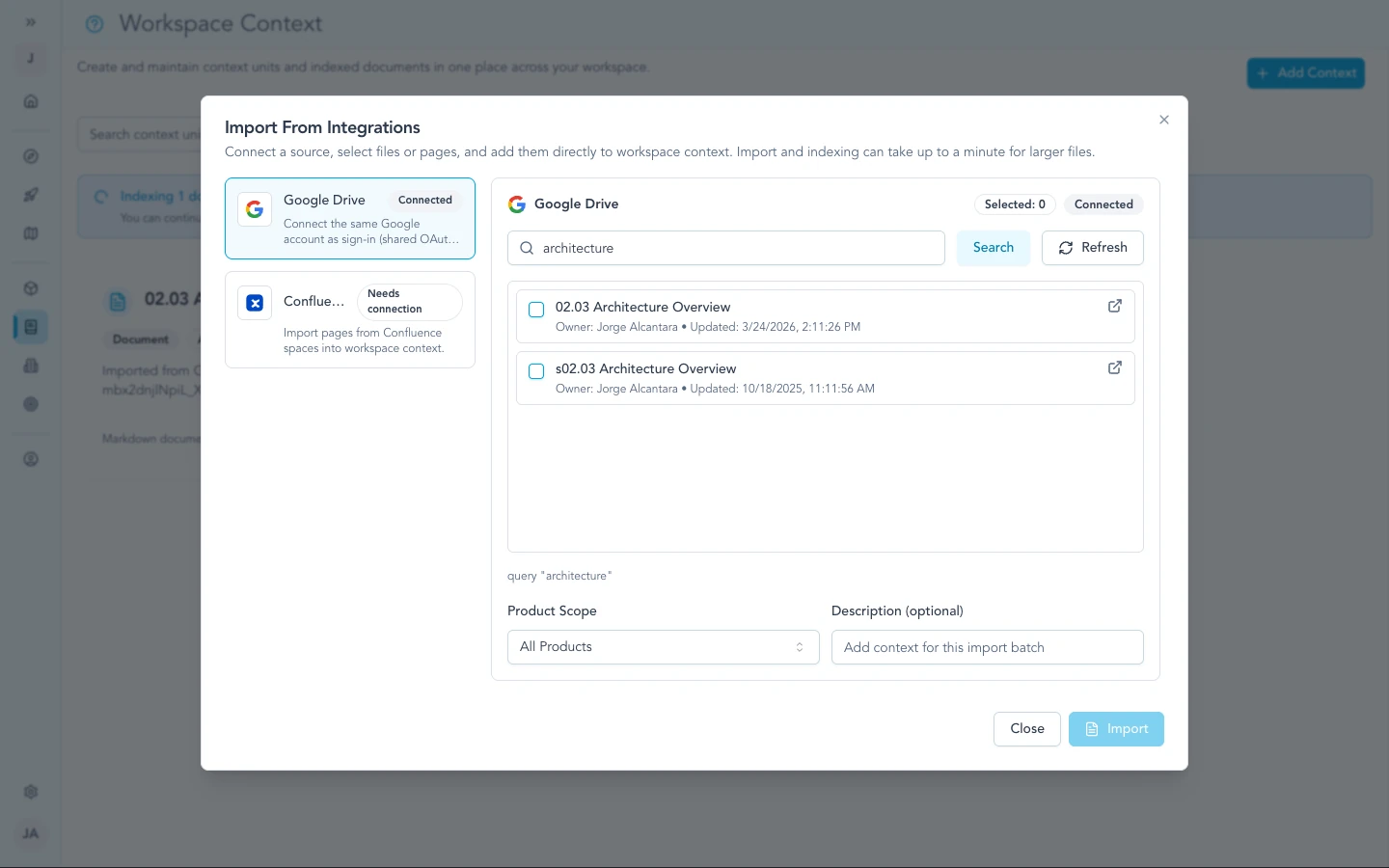
From workspace context imports, search Drive and pick a Doc to pull into shared Zentrik context.
Initiative documents
Link an initiative document to an existing Google Doc—or create upstream from Zentrik when your process expects continued editing in Google. When your workflow calls for it, refresh approved upstream changes into Zentrik or publish approved Zentrik edits back to the Doc. Comments stay managed in Google; Zentrik can surface them for context where the product supports it.
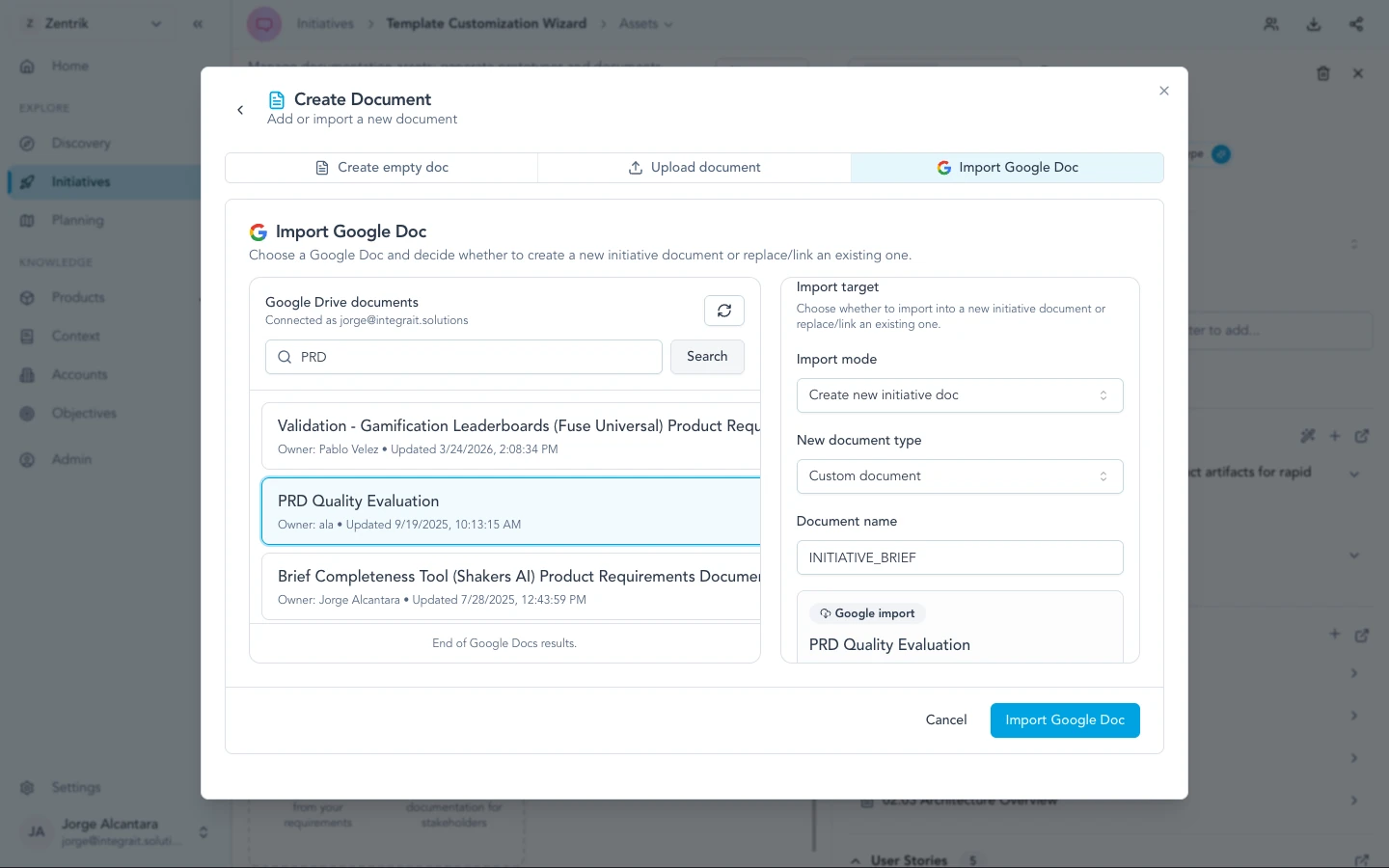
On an initiative, link or import from Google Docs so collaboration can stay upstream while Zentrik holds the product record.
For workspace admins
- One Google Drive integration per Zentrik workspace is typical: teammates reuse it instead of each signing in separately for the same workspace tasks.
- Zentrik only uses Google access for the workflows above—picking files, importing content, and optional initiative document sync.
- Revoke from Google Account security or by disconnecting in Settings → Integrations. If your admin changes policies, reconnect from Zentrik to refresh consent.
Troubleshooting
Most connection problems clear up after a fresh authorization or an admin allows the app. If you have tried that and still cannot connect, contact us and we will help.
Cannot connect or Google blocks the app
Ask your Google Workspace admin to allow Zentrik, then try Settings → Integrations → Google Drive again (disconnect first if the UI offers it, then connect). Contact us if it still fails after admin approval.
File or Doc not found
Confirm you connected with the Google account that owns or has shared access to that Doc. Disconnect in Zentrik and connect with the right profile if needed.
Stopped working after a while
Reconnect from Settings → Integrations. If problems continue, disconnect completely and authorize once more.