Zentrik + Jira
Keep Jira as the place engineering executes while Zentrik holds discovery, prioritization, and structured planning. Pull issues and Jira Product Discovery ideas in for context, then push stories and tasks out when the team commits to delivery.
Connect once under Settings → Integrations (OAuth).
Zentrik connects with Atlassian sign-in. Reading powers imports and planning context; writing happens only when someone explicitly exports or updates work from Zentrik—never as a hidden background sync.
Teams usually configure one Jira connection per Zentrik workspace so everyone sees the same site and field mappings stay consistent.
Access & permissions
What Zentrik requests when you connect (useful for security reviews). You can review or revoke access from the provider's account or admin console anytime.
- Stay connected : Keeps Jira linked until you disconnect or revoke access in Atlassian.
- Read Jira : Pull in issues and project context for imports and planning views.
- Write Jira : Create or update issues when someone runs an export from Zentrik—not in the background.
Connect Jira
Authorize from Settings → Integrations → Jira: sign in to Atlassian, choose the Jira site when prompted, and approve access for the workflows below.
Authorize Jira
- Settings → Integrations → Jira → start connect.
- Sign in to Atlassian and approve Jira access for imports and exports.
- Confirm Zentrik shows Jira as connected for the workspace.
One connection per workspace
A single workspace-level Jira integration avoids conflicting credentials and makes it obvious which Atlassian site is authoritative. Need a different site? Admins disconnect and reconnect with the correct Atlassian authorization.
How to use it
Exact menus evolve with the product; capabilities cluster into importing planning context, exporting delivery work, and (when enabled) Jira Product Discovery as discovery input.
Backlog and planning context
Seed Zentrik with epics, issues, or initiatives your team already tracks in Jira so prioritization and discovery stay grounded in real delivery scope—not retyped from Jira into slides.
Export stories and tasks
When work is ready for engineering, export stories, tasks, or related items into Jira from Zentrik’s project surfaces. Zentrik creates or updates issues your permissions allow and preserves traceability back to the initiative or discovery record you started from.
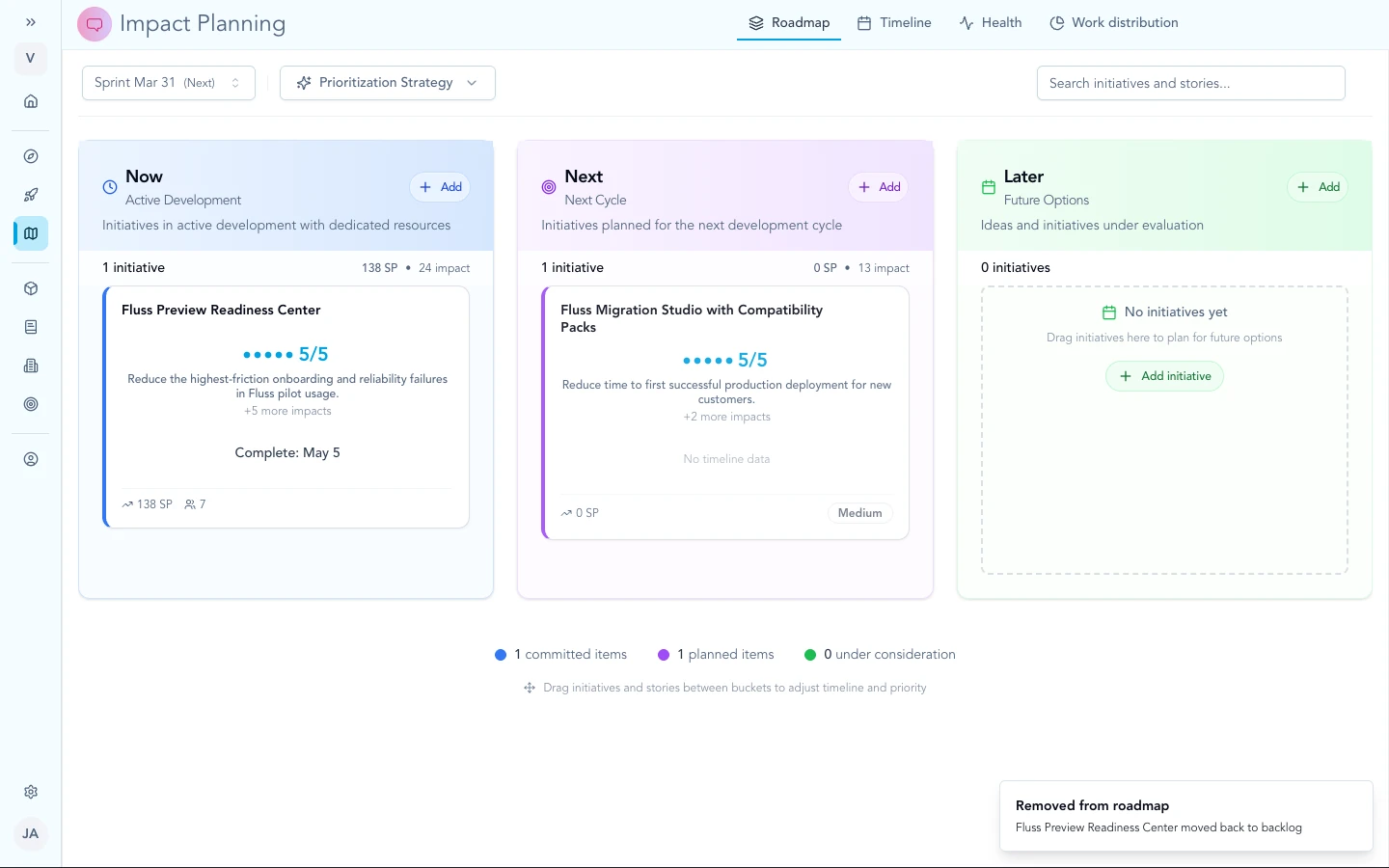
Plan and prioritize in Zentrik; when work is ready, export stories and tasks to Jira from your initiative and project surfaces.
Jira Product Discovery
If demand lives in Jira Product Discovery, Zentrik can treat those ideas as structured discovery input alongside calls and tickets—so prioritization in Zentrik still reflects what PMs already captured upstream in Jira.
For workspace admins
- Read scopes support imports and context; write scopes are used only when a user triggers an export or update.
- Remove access from Settings → Integrations or from Atlassian connected apps when offboarding.
Troubleshooting
Most connection problems clear up after a fresh authorization or an admin allows the app. If you have tried that and still cannot connect, contact us and we will help.
Authorization or connection errors
Settings → Integrations → Jira → disconnect, then connect again. Ask your Atlassian admin to allow Zentrik if your org blocks third-party apps. Contact us if it still fails.
Export failed or missing projects
Confirm your Atlassian user can create issues in the target Jira project. Reconnect Jira in Zentrik if permissions recently changed.
Wrong Jira site
Disconnect Jira in Zentrik and reconnect, choosing the correct site when Atlassian asks.