
Zentrik + Vercel's v0
Keep prototype work tied to the initiative record. Save a Vercel v0 token once per workspace, then launch v0 from Generate prototype whenever you want a repeatable session seeded with goals, constraints, and requirements.
Admins save one workspace credential in Settings → Integrations.
Vercel’s v0 is the option when your team wants logged-in, repeatable prototype runs from Zentrik—no re-entering credentials for each session. You still review and launch from the same Generate prototype modal as Lovable or Bolt; the difference is Zentrik can call v0 on your behalf using the workspace token.
After you publish, use Save external prototype so the URL lives on the initiative next to specs and other assets.
Configure Vercel's v0
An admin saves the token under Settings → Integrations → Vercel's v0. Zentrik validates it server-side and does not display it again after save.
Create and save a token
- In Vercel v0, open the area where API tokens are issued.
- Create a token with permissions suited to automated generation.
- Paste it into Zentrik, save, and run any health check offered.
Rotate by issuing a new token in v0, updating Zentrik, then revoking the old token.
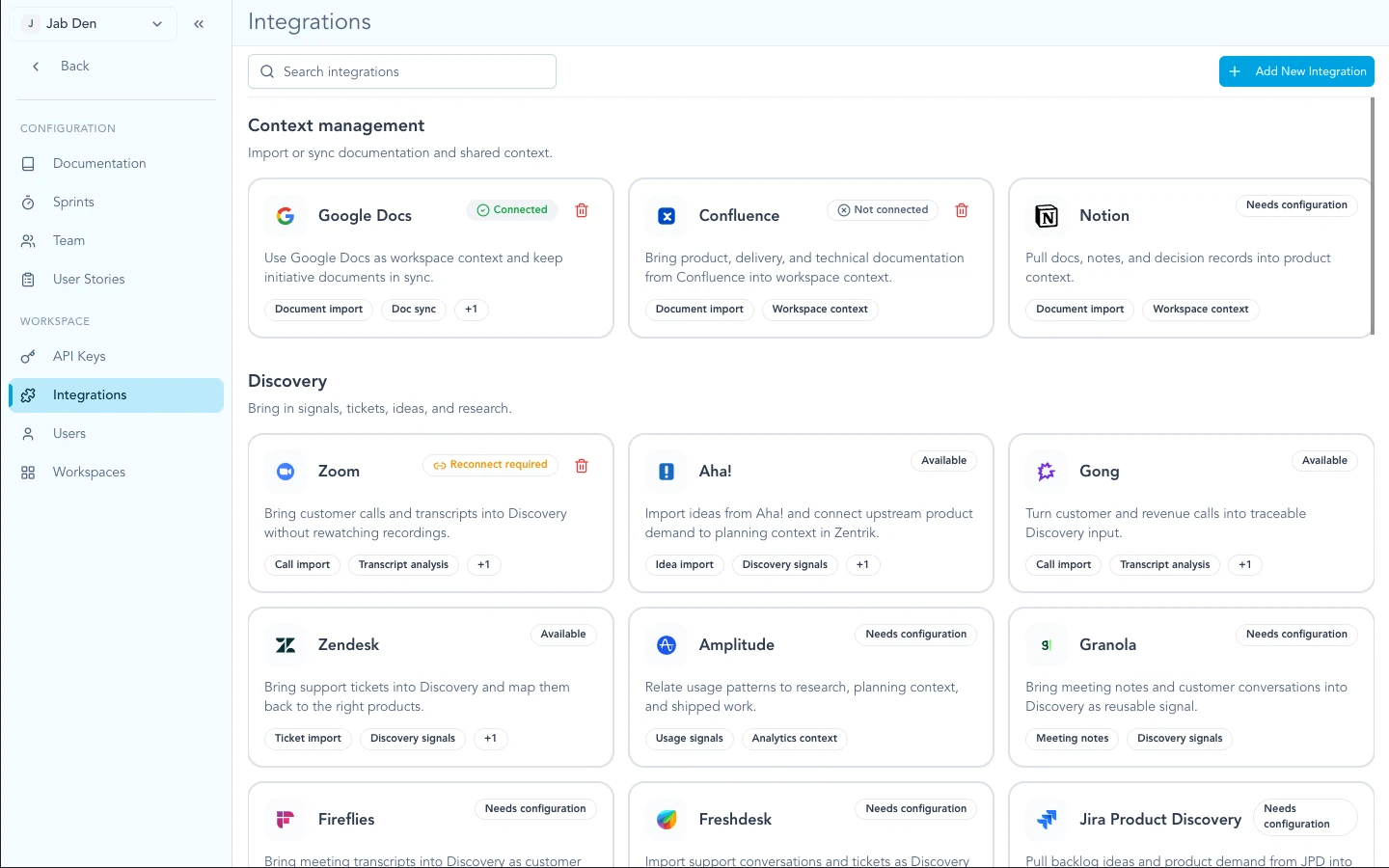
Find Vercel's v0 under Settings → Integrations, then paste and save your API token.
v0 vs prompt handoffs
- Vercel v0 (saved token): best when the team wants repeatable sessions, billing tied to one workspace identity, and deeper automation from Zentrik.
- Lovable / Bolt / Magic Patterns (handoff): best for lightweight “generate prompt → open vendor in a tab” flows with no vendor secret stored in Zentrik.
You can use both; they serve different cadences.
How to run it
From an initiative: Assets → Create prototype → Generate prototype, then pick v0 (Vercel). Zentrik composes the prompt from initiative context using the saved token.
From an initiative
- Open the initiative Assets library → Create prototype.
- In Generate prototype, select v0 (Vercel) (the workspace token authorizes the session).
- Wait for generation, review the instructions, then continue in Vercel's v0.
- Save external prototype to store the published URL on the initiative.
Some workspaces also expose v0 next to task export when engineering work should reference the same prototype.
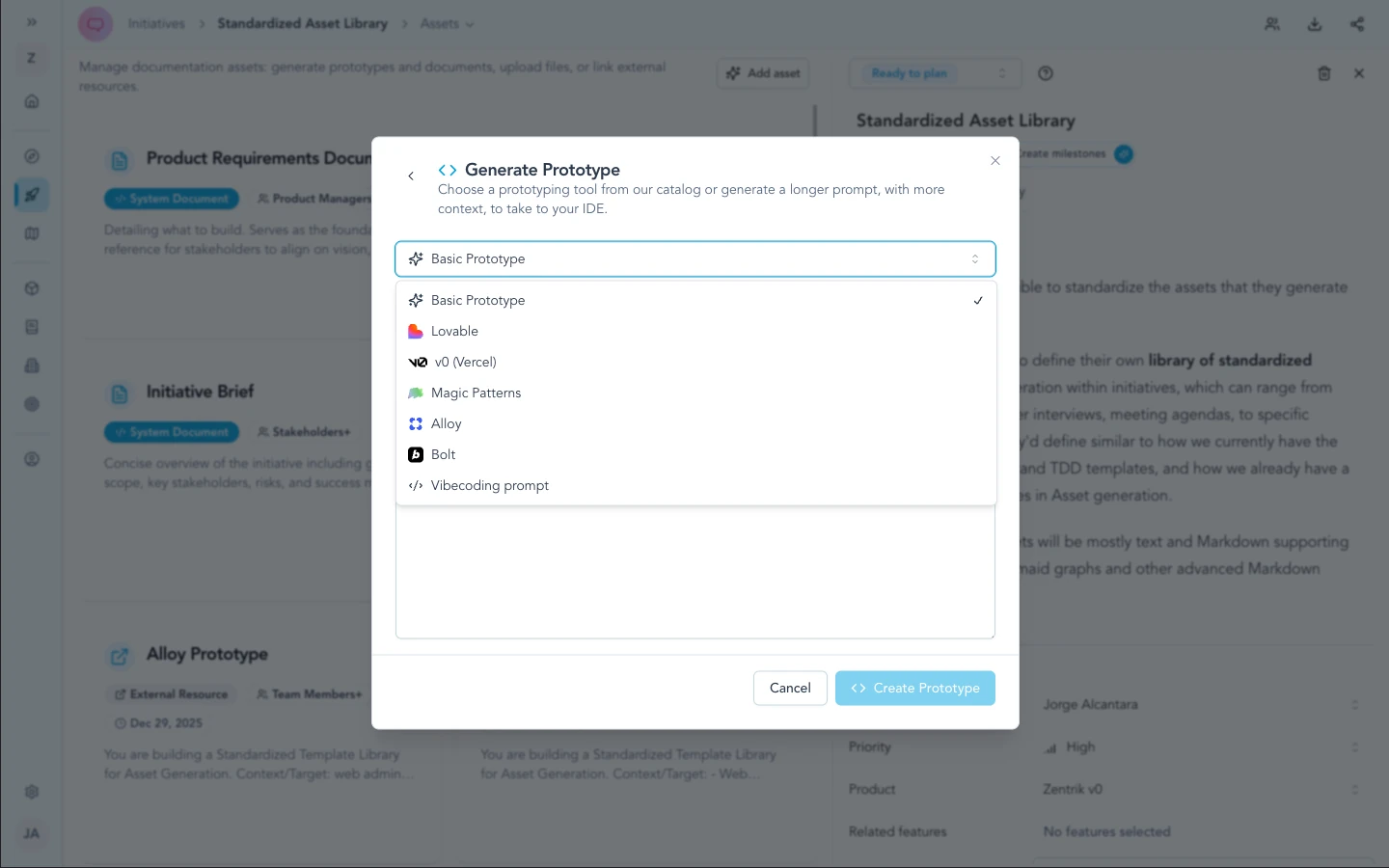
On the initiative, open Create prototype and pick v0 (Vercel)—Zentrik uses your saved workspace token for repeatable sessions after you connect in Settings.
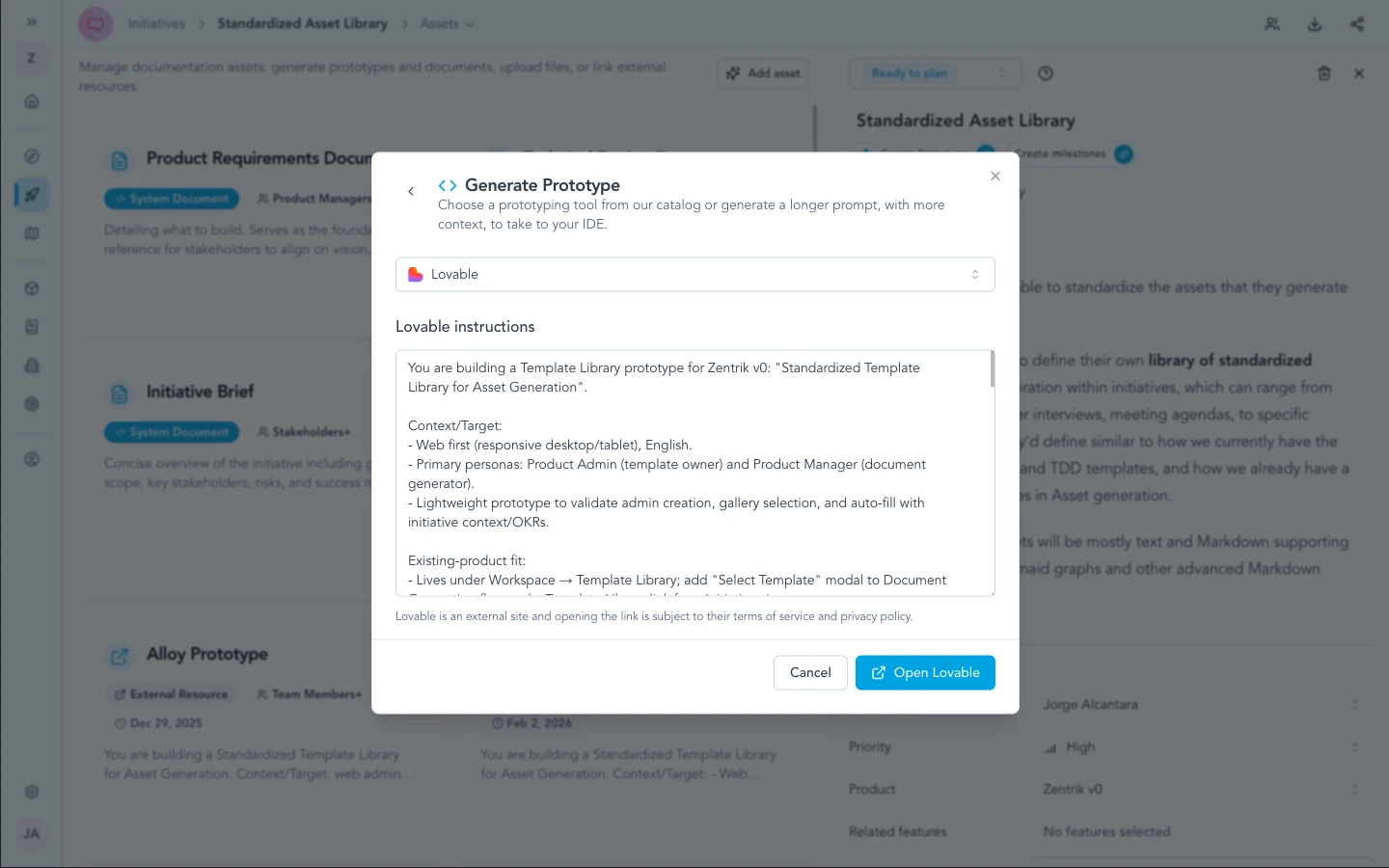
The same in-modal generation step runs for Vercel's v0 as for prompt handoffs—complete it, then continue in Vercel's v0 with the saved workspace token.
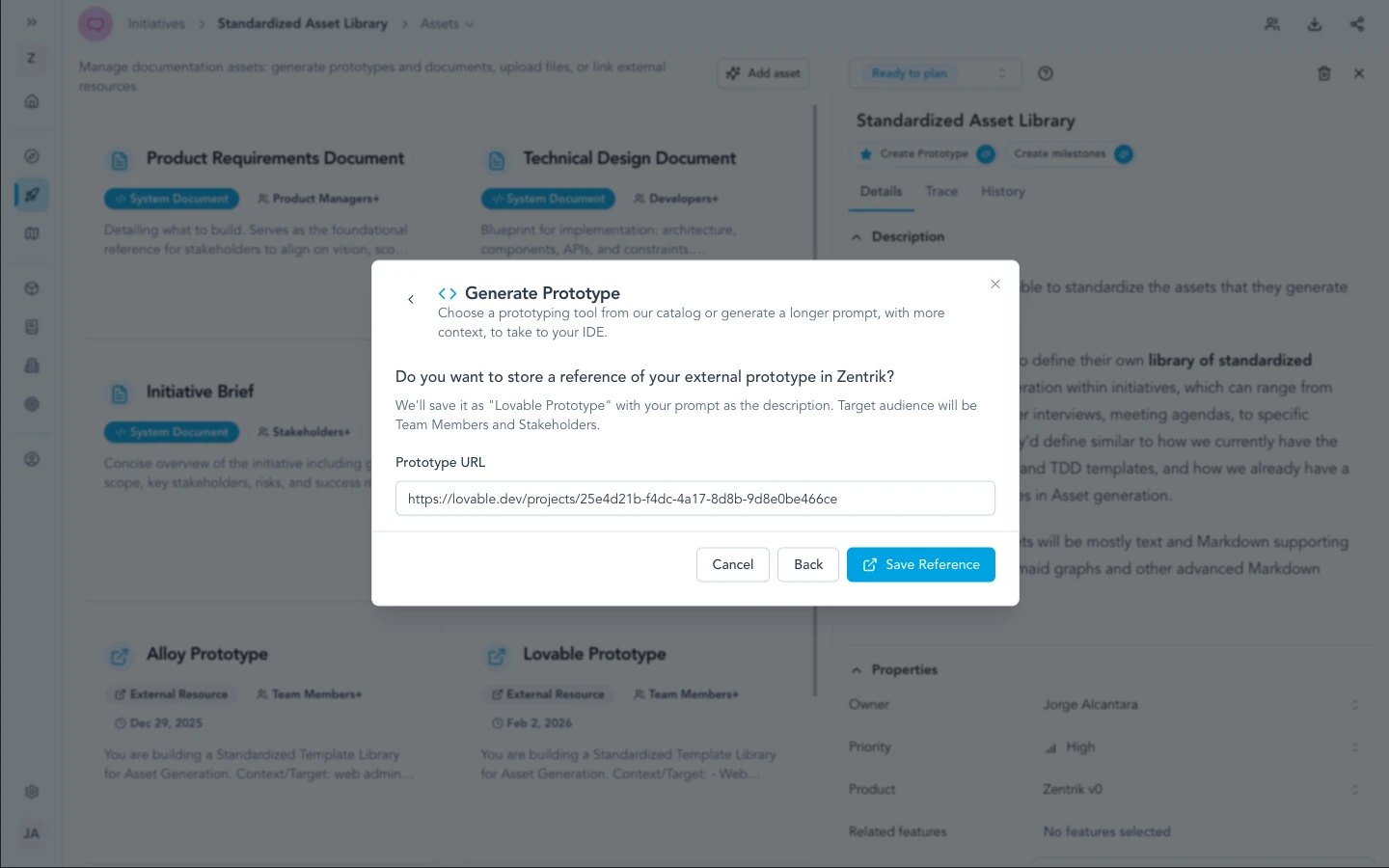
Store the published v0 URL on the initiative when you want a durable link next to specs and other assets.
For workspace admins
- One Vercel v0 integration per Zentrik workspace keeps usage and billing attributable to a single token.
- Tokens are stored server-side; the browser never sees the secret again after save.
- Align token permissions and rotation with your security and vendor policies.
Troubleshooting
Check credentials and permissions on both sides first. If you have verified everything and it still fails, contact us with your workspace name and what you tried.
Token rejected
Create a new token in Vercel v0, paste into Zentrik with no extra spaces, and save.
Rate limits or quota
Wait and retry, or ask whoever owns the Vercel v0 account about limits. Contact us if Zentrik still errors after that.