
Zentrik + Zendesk
Let support tickets inform prioritization, not stay siloed in Zendesk. Connect once per workspace, choose which groups and fields matter, map demand to products, and import tickets into Discovery next to calls and docs.
Admins save one workspace credential in Settings → Integrations.
After an admin saves subdomain, agent email, and API token, you configure which support groups sync into Zentrik and how they map to products. That keeps imports intentional: product-relevant volume surfaces in discovery without asking every PM for a Zendesk password.
Pick tickets in the import UI; Zentrik does not silently ingest your entire Zendesk account.
Connect Zendesk
Create the integration under Settings → Integrations → Zendesk. You need the subdomain, an agent email allowed to use API tokens, and that user’s API token.
Required fields
- Subdomain — the prefix for your Zendesk (for example,
acmeif you sign in atacme.zendesk.com). - Email — the Zendesk agent email that owns the API token.
- API token — from Zendesk Admin under Apps and integrations → APIs → Zendesk API.
Paste all three into Zentrik and save. The token is stored server-side and is not shown again in the UI.
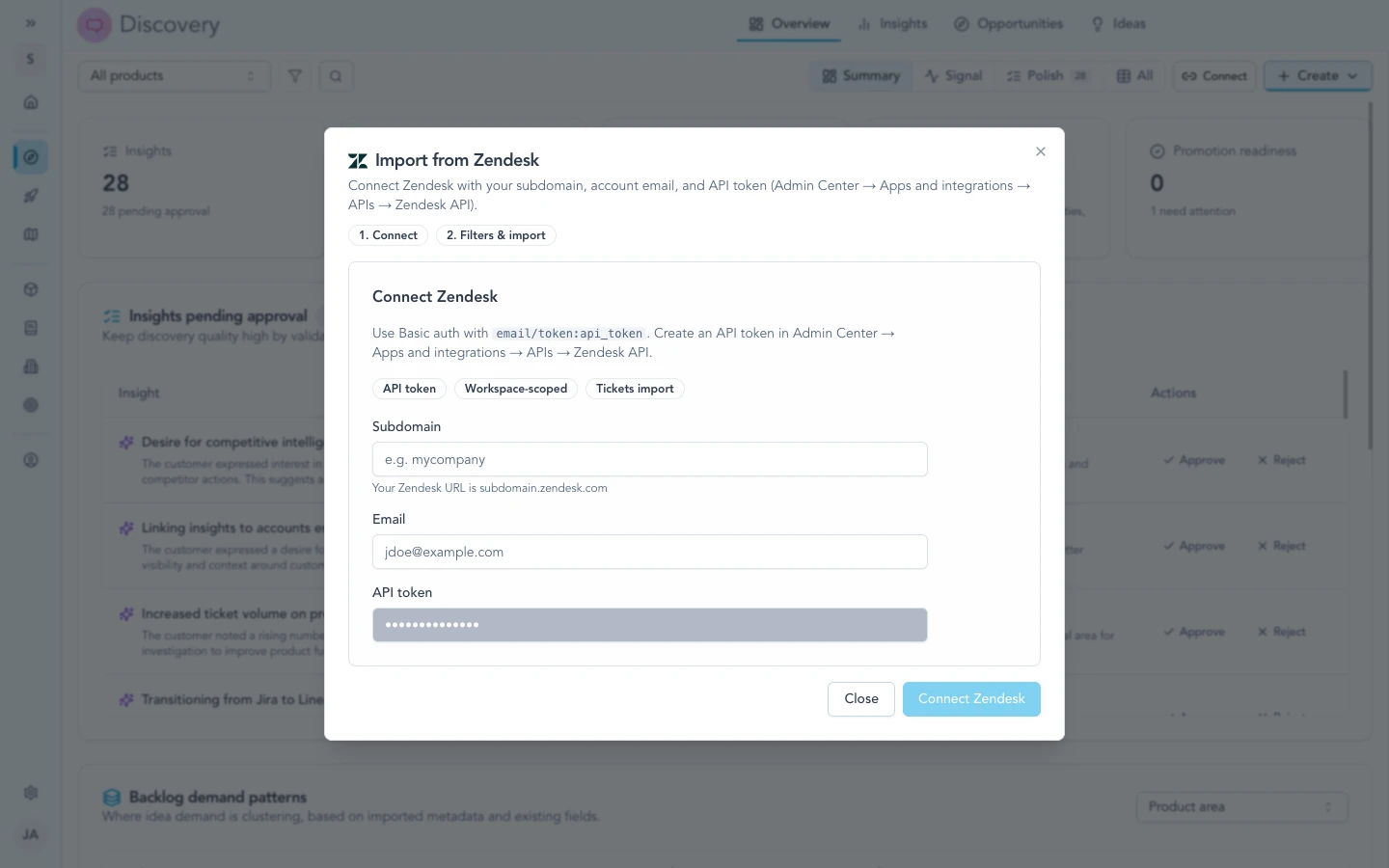
With subdomain, agent email, and API token saved in Settings, connect Zendesk from the import flow when you pull tickets into Discovery.
Validate the connection
Use Check connection (or the health indicator) after saving. If it fails, confirm the agent is still active in Zendesk and the token has not been revoked.
Tune imports
Zendesk is meant to be governed: you decide which groups represent product-relevant demand and which custom fields appear when you analyze tickets in Zentrik.
Groups and product mapping
In Zendesk integration settings, select the groups that should sync. Map them to Zentrik products so insights and opportunities land in the right product area instead of a generic bucket.
Ticket fields
Enable the ticket fields that matter for discovery—priority, product area, escalation tags, or custom fields your support team maintains. A deliberate field set reduces noise while keeping the metadata PMs need for triage.
How to use it
Open Discovery and start a Zendesk import. Available tickets respect the group filters you configured and Zendesk permissions for the API user.
Import tickets
- Choose Zendesk from the Discovery import menu.
- Filter or search for the ticket or slice you need.
- Review previews and confirm import.
Imported tickets become signals you can link to insights, opportunities, and roadmap narratives—like other customer feedback channels.
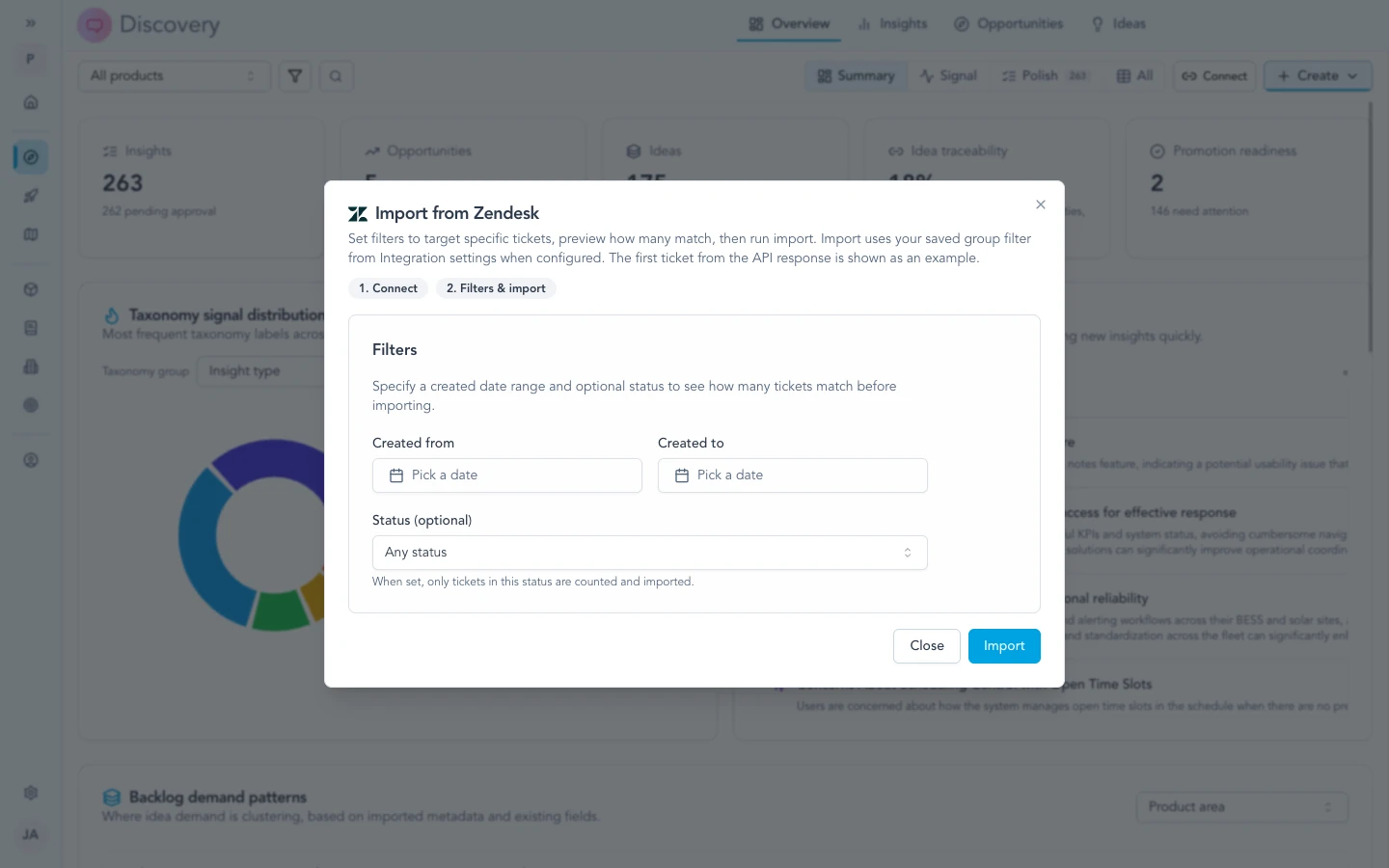
Choose tickets that match your configured groups and fields so imports stay relevant to each product area.
For workspace admins
- Credentials are workspace-scoped and stored server-side; rotate the Zendesk token on the same schedule as other automation accounts.
- Zentrik only sees tickets the API user can see in Zendesk; fix permission issues in Zendesk first if imports look incomplete.
- Disconnect in Zentrik and revoke the token in Zendesk when retiring the integration.
Troubleshooting
Check credentials and permissions on both sides first. If you have verified everything and it still fails, contact us with your workspace name and what you tried.
Connection check fails
Confirm subdomain, email, and API token match (email must be the user who created the token). Regenerate the token in Zendesk if unsure, update Zentrik, and try again.
No tickets in the picker
In Zentrik’s Zendesk settings, enable the groups that contain those tickets. In Zendesk, confirm the API user can see them. Contact us if settings look correct but imports stay empty.