
Zentrik + Zoom
Turn customer and stakeholder calls into traceable Discovery signal. Connect Zoom, pick a meeting that already has a cloud transcript, and work from the text in Zentrik—linked to insights, opportunities, and what you ship next.
Connect once under Settings → Integrations (OAuth).
IT or Zoom admins can use the official marketplace listing for install approval and policy questions.
Zoom App Marketplace listingYou use Zoom for the conversation; Zentrik becomes where the team synthesizes themes, files insights, and ties evidence to roadmap decisions. After you connect, imports are read-only toward Zoom—we list transcript-ready recordings and pull the one you choose.
Some companies require Zoom admin approval for marketplace apps before anyone can finish OAuth.
Access & permissions
What Zentrik requests when you connect (useful for security reviews). You can review or revoke access from the provider's account or admin console anytime.
- Cloud recordings : List meetings that have cloud recordings so you can choose one to import.
- Transcripts : Fetch the transcript for the recording you select in Zentrik.
- Account identity : Shows which Zoom account is connected so everyone knows the source.
Connect Zoom
Start from Settings → Integrations or from Discovery the first time you import—both paths use the same authorization.
Before you start
- Cloud recording enabled for the meetings you care about.
- At least one recording where Zoom has finished an audio transcript (handy for a first test).
- If your org restricts apps, a Zoom admin may need to approve Zentrik before OAuth succeeds.
Connect Zoom
From Settings
- Open Settings → Integrations → Zoom.
- Choose Connect and approve permissions on Zoom’s screen.
- Return to Zentrik when Zoom confirms success.
From Discovery
- Open Discovery and start a Zoom import.
- Choose Connect account if you are not connected yet.
- Complete Zoom authorization; you return ready to pick a meeting.
Import transcripts
Once connected, Zoom appears anywhere your workspace surfaces Discovery transcript imports. The usual path: open Discovery, start a Zoom import, choose a meeting, then continue with classification and insights.
Reconnect
When to reconnect
- Tokens expire; Zentrik will prompt you when refresh is no longer possible.
- Your admin changed Zoom policies—a fresh consent restores access.
How
- Settings → Integrations → Zoom.
- Use Reconnect or Connect, or Disconnect and run OAuth again if the UI suggests it.
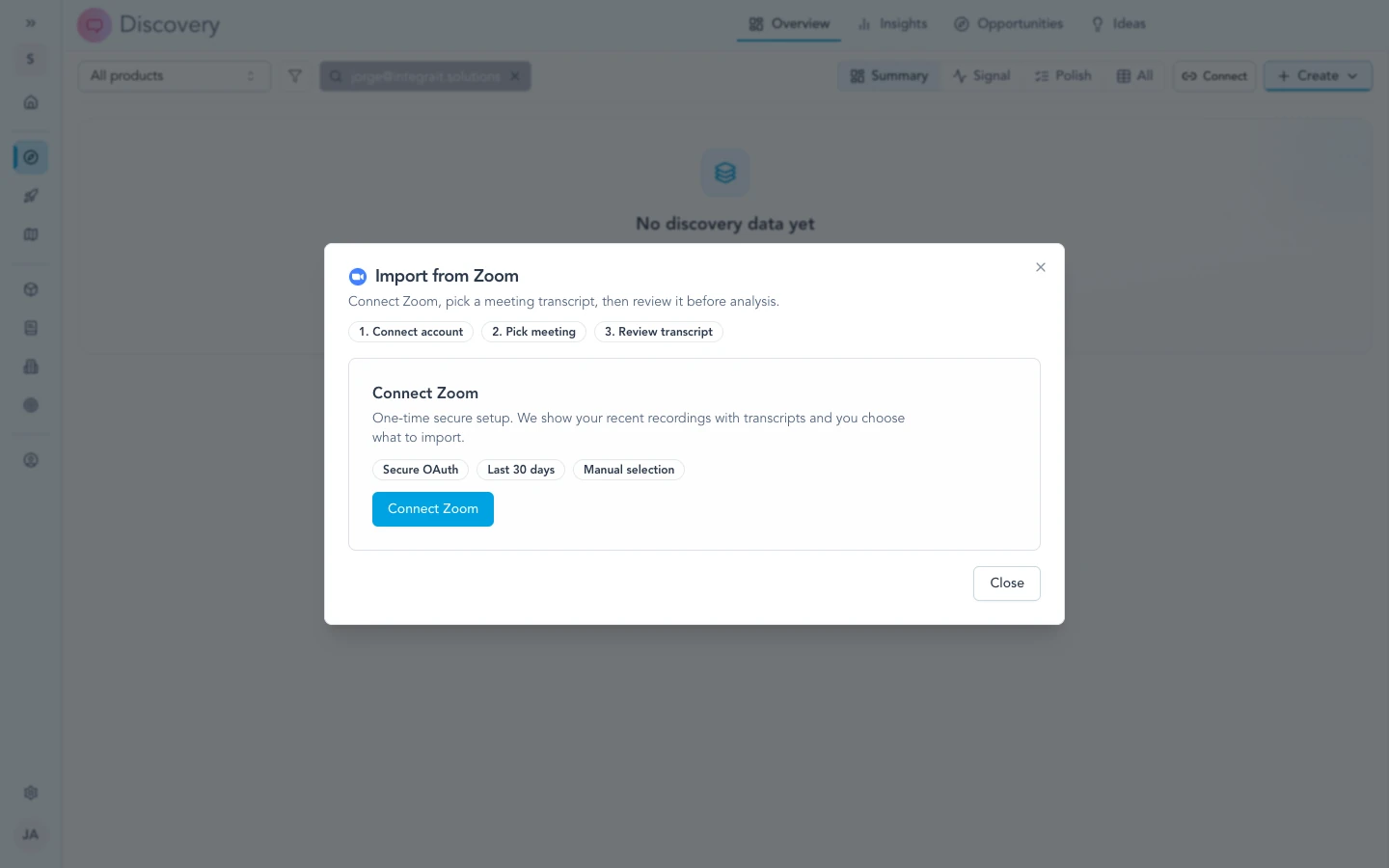
From Discovery, start an import and connect Zoom when prompted—then you can pick transcript-ready meetings.
Run an import
You need
- Zoom connected in Zentrik.
- The meeting in Zoom cloud recordings.
- A finished audio transcript for that recording (Zoom may need time after the call).
Typical flow
- In Discovery, start a Zoom import.
- Pick a meeting from the list (often focused on the last 30 days—check the in-product hint).
- Review the preview, then continue with your Discovery workflow.
Imported text is workspace content in Zentrik. It does not replace the recording or transcript in Zoom.
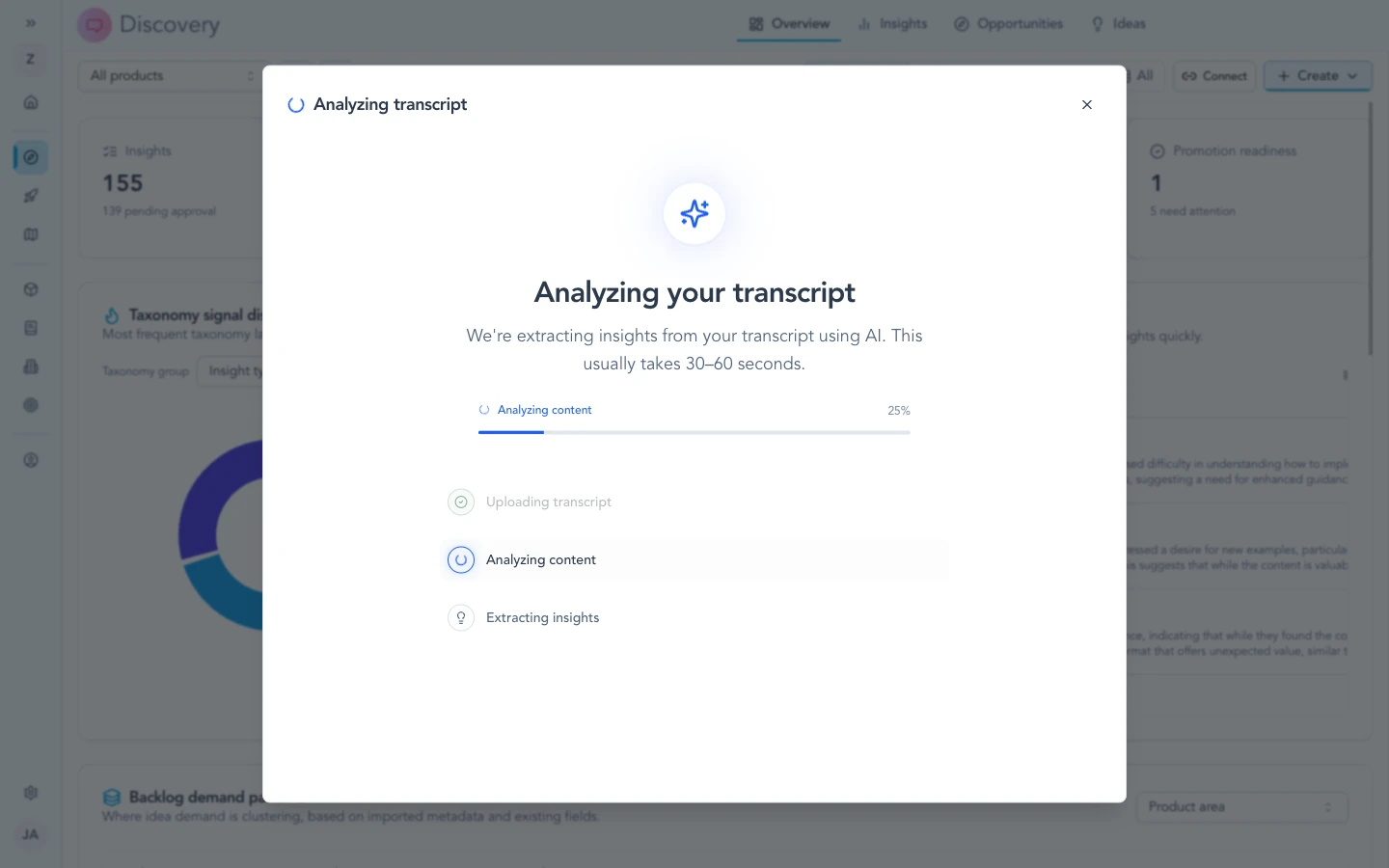
After you select a meeting, Zentrik pulls and analyzes the transcript so your team can work from the text in Discovery.
Disconnect & data
Stop access from Zentrik, from Zoom, or both—match whatever your security or offboarding process requires.
Disconnect in Zentrik
- Settings → Integrations → Zoom.
- Open the integration and choose Disconnect.
Zentrik clears the stored connection for that workspace integration. You can connect again later.
Remove in Zoom
- Sign in to Zoom in the browser.
- Open installed / connected apps (wording varies by account).
- Find Zentrik and Remove or Revoke.
Zoom notifies Zentrik when access is revoked so we stop calling the API for that connection.
What stays in Zentrik
- After revocation, Zentrik cannot call Zoom for that user connection.
- We remove stored Zoom OAuth credentials tied to the de-authorized connection.
- Content you already imported (for example transcript text used in Discovery) stays in Zentrik until your team deletes those records through normal product actions—like other imported sources.
Troubleshooting
Most connection problems clear up after a fresh authorization or an admin allows the app. If you have tried that and still cannot connect, contact us and we will help.
Authorization failed or keeps failing
Try Settings → Integrations → Zoom → disconnect, then connect again. If your company restricts apps, ask your Zoom admin to approve Zentrik, then retry. Still stuck? Contact us.
No transcript for a meeting
Zoom only lists meetings with a finished cloud recording and audio transcript. Pick another call, wait for Zoom to finish processing, or enable transcription for the meetings you need in Zoom.
Connection expired
Open Settings → Integrations → Zoom and use Reconnect (or disconnect and connect again).